
The main difference is apps and security. Business Basic typically gives you email, usually Teams (variants differ) and web and mobile Office apps; Standard adds the installed desktop apps; Premium adds device management and advanced protection. The right choice depends on each user’s role, so check the current Microsoft documentation before deciding.
Most small businesses do not need one plan for everyone. A finance lead working from a laptop has different needs from a receptionist who reads mail and joins Teams calls. This guide compares the three Business plans, shows how to choose by user profile and explains why a licence alone is not protection.
Questions about this guide? Talk it through with us
What separates Business Basic, Standard and Premium
The three plans share one foundation: business email, Teams in most variants and cloud storage. They differ in two steps. The first is the installed desktop apps, which Standard adds. The second is security and device management, which Premium adds. Plan contents, limits and variants change, so check the current Microsoft documentation, such as Microsoft Learn, before you buy. BlueNova IT is an IT services provider, and this guide is not Microsoft material.
| Criteria | Business Basic | Business Standard | Business Premium |
|---|---|---|---|
| Web and mobile Office apps | Typically yes | Typically yes | Typically yes |
| Installed desktop apps | Typically no | Typically yes | Typically yes |
| Device management (Intune) | Check by plan | Check by plan | Typically included; check edition |
| Advanced protection (Defender) | Check by plan | Check by plan | Typically included; check edition |
What all three plans have in common
All three plans typically share business email on your own domain, Teams in most variants, cloud storage and web and mobile Office apps. That common base means every user can send and receive mail, join meetings and open documents in a browser or on a phone. Variants matter, though: the same plan name can be sold with or without Teams depending on region and date, so check the exact product before you buy. For current limits on mailboxes, storage and users, check the current Microsoft documentation.
Where Basic ends and Standard begins
The line between Basic and Standard is the installed desktop apps on the user’s computer. Basic users work in the browser or on a phone; Standard users can also use the desktop versions of the Office applications. For someone who builds long spreadsheets, edits large documents or works offline, that difference is felt every day. For someone who mostly reads mail, joins Teams calls and opens shared files, it may never matter. Confirm which apps each plan covers in the current Microsoft documentation.
Where Standard ends and Premium begins
The line between Standard and Premium is security and device management, not the everyday Office tools. A Standard user and a Premium user typically open the same applications. What changes is what sits around them: fuller device management through Intune and advanced protection through Defender, both associated with Premium. Whether a given control exists in a given plan is time-sensitive, so check the current Microsoft documentation rather than assuming. Organisations that handle sensitive data typically weigh this step most carefully.
How to choose a plan by user profile
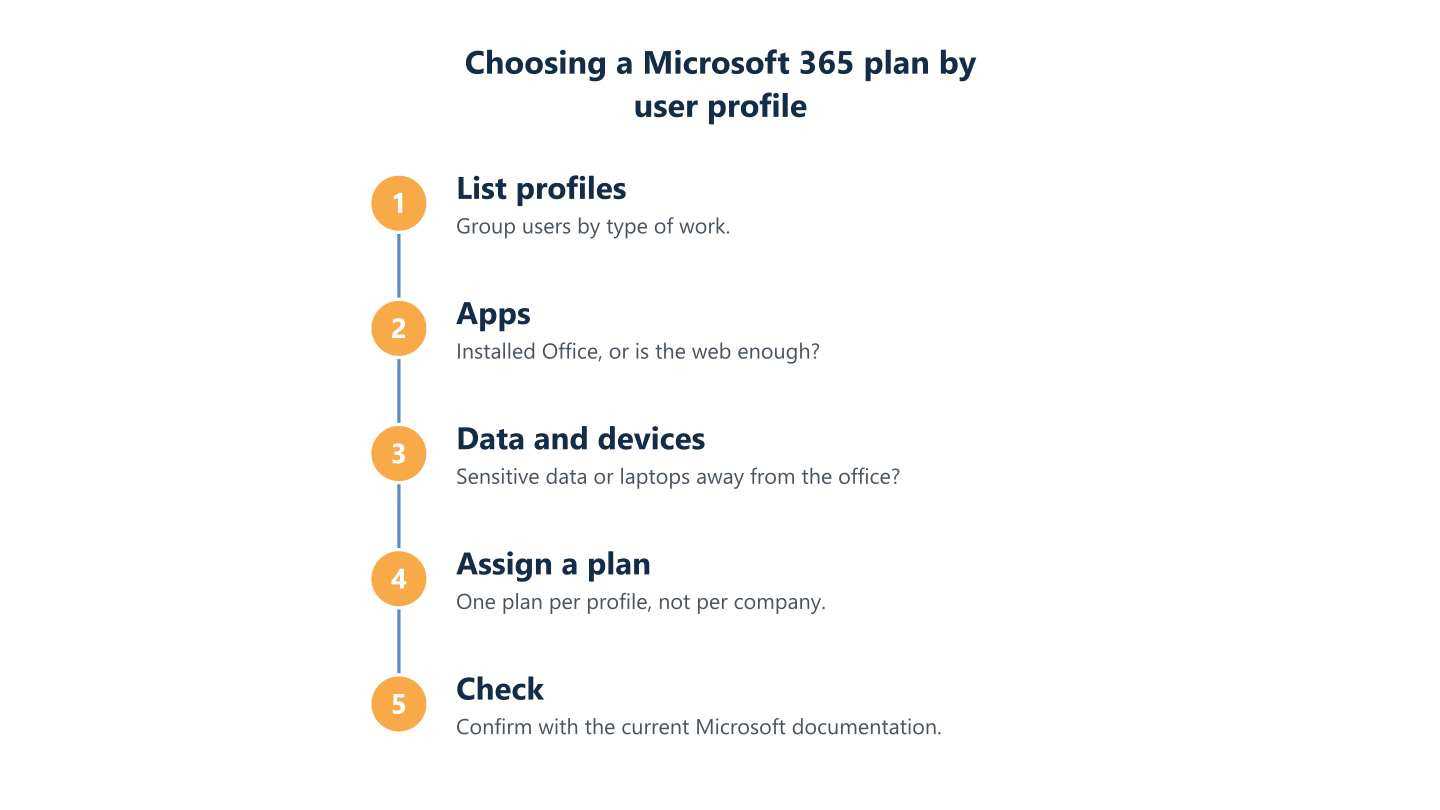
Choosing for the whole company at once can leave some people paying for features they never use and others short of what they need. Work through these steps instead:
- List the roles in your organisation, such as office staff, field staff, managers and finance.
- Note who needs installed desktop apps and who only needs a browser or a phone.
- Mark who handles sensitive client or financial data, or works away from the office.
- Match each role to a plan, and accept that the answer may be more than one plan.
- Check the exact product and variant in the current Microsoft documentation before you buy.
For wider Microsoft 365 questions, see our cloud and Microsoft 365 services; scope is agreed per organisation.
Who needs installed desktop apps
Ask who opens Word, Excel or Outlook every day as installed apps, and who only reads mail, uses Teams and opens files. People who work in long documents and large spreadsheets, such as finance, administration and managers, typically benefit from the installed desktop apps found in Standard and Premium. People who read mail, join calls and open shared files from a browser or phone may manage with Basic. These are starting points, not rules: ask the people concerned how they actually work before you assign a plan.
Who handles sensitive data or works away from the office
Look at who works with client or financial data, or does so from laptops and phones outside the office. These users are exposed if a device is lost, a password is phished or a file is shared by mistake. Device management, advanced protection and sign-in controls are what Premium is associated with, so these roles are the first to check against it. A licence is only part of the answer: settings and upkeep matter as much. Check the current Microsoft documentation for what each plan covers.
Mixing plans in one organisation
Plans can typically be assigned per user, so one organisation can hold more than one plan at the same time. One pattern is a lighter plan for people who only need mail and Teams, and Premium for those who handle sensitive data. Mixing keeps each plan tied to a role, but it also means more to track: who holds which plan, and whether the right settings apply to each person. Check the current Microsoft documentation on how plans can be combined and on any limits that apply.
Read the steps as text
List profiles, apps, data and devices, assign a plan, check
What Business Premium adds: security and device management
Premium is associated with security and management capabilities rather than different everyday tools. As described in the current Microsoft documentation, these typically include:
- Device management through Intune, including remote wipe for lost laptops and phones.
- Advanced protection against phishing, malicious attachments and malware through Defender.
- Conditional access rules that control how users sign in.
- Information protection features (check which edition includes them).
A licence does not switch any of this on, and each item depends on the exact plan and edition. Related work falls under our cybersecurity and cloud and Microsoft 365 services; scope is agreed per organisation.
Device management and remote wipe
Device management through Intune lets an organisation apply settings to laptops and phones and, as described in the current Microsoft documentation, wipe a device remotely if it is lost or stolen. Fuller device management is associated with Premium. Lighter mobile controls may exist in lower plans, so check by plan rather than assuming. It also needs a policy: someone has to decide which devices are allowed and what happens when one goes missing.
Email and device protection against phishing and malware
Defender provides advanced protection against phishing, malicious attachments and malware, subject to configuration and the exact edition of each plan. How far that protection goes depends on the plan and on its settings, so check the current Microsoft documentation for what yours includes. Even with the right licence, protection works only as well as the settings behind it and the habits of the people using it. Staff awareness of suspicious messages remains part of the picture whichever plan you hold.
Access controls, and why a licence is not protection
Conditional access rules decide who may sign in, from which device and under which conditions, and they are associated with Premium. Multi-factor authentication is less clear: MFA availability depends on your tenant settings and plan; check the current Microsoft documentation. The wider point is that a licence is not protection: features have to be switched on, tested and reviewed. Our guide on how to choose cybersecurity services lists questions to ask. For a step-by-step list of settings to check, see our Microsoft 365 security baseline checklist.
What no plan covers and what is bought separately
Several things readers often assume are included are either separate or depend on the variant: independent backup, telephony, Copilot and other add-ons, and some usage limits. Microsoft sets the prices for these and they change, so we give none here. Check the current Microsoft documentation, such as Microsoft Learn, every time you buy or renew, because what a plan includes today may not match what an older article or a third-party page describes.
The plan name is not the product: check the exact licence variant before you buy.
The three sections below cover backup, add-ons and the limits to check before you decide.
Independent backup of mail and files
Business plans do not replace an independent backup of mail and files. Native retention and backup are different things: retention keeps data under rules you set, while a backup is a separate copy you can restore from if something is deleted, overwritten or encrypted. Check the current Microsoft documentation for what your plan retains. To decide how much loss and downtime you can tolerate, read our guide to backup and recovery for business.
Teams, telephony, Copilot and other add-ons
Teams, telephony, Copilot and other add-ons can be sold as variants or separate licences. The same plan name may come with or without Teams depending on region and date, so check the exact licence variant on the order and not only the plan name. Telephony and Copilot are typically licensed separately from the base plan, and availability can differ by region. If you are weighing cloud tools more broadly, our guide to choosing cloud services for your business compares SaaS, PaaS and IaaS. For rules on using Copilot and other AI assistants at work, see our AI use policy guide.
Limits to check in the Microsoft documentation
Limits and features change over time, so cross-check any figure against the current Microsoft documentation before deciding. Items worth checking include mailbox and storage sizes, the maximum number of users for a plan, how many devices can run the installed apps and which security features each plan includes. We do not quote these figures here because they are time-sensitive. Write down the date you checked and the page you used, so the next review starts from the same point.
Common licensing mistakes and how to review yours
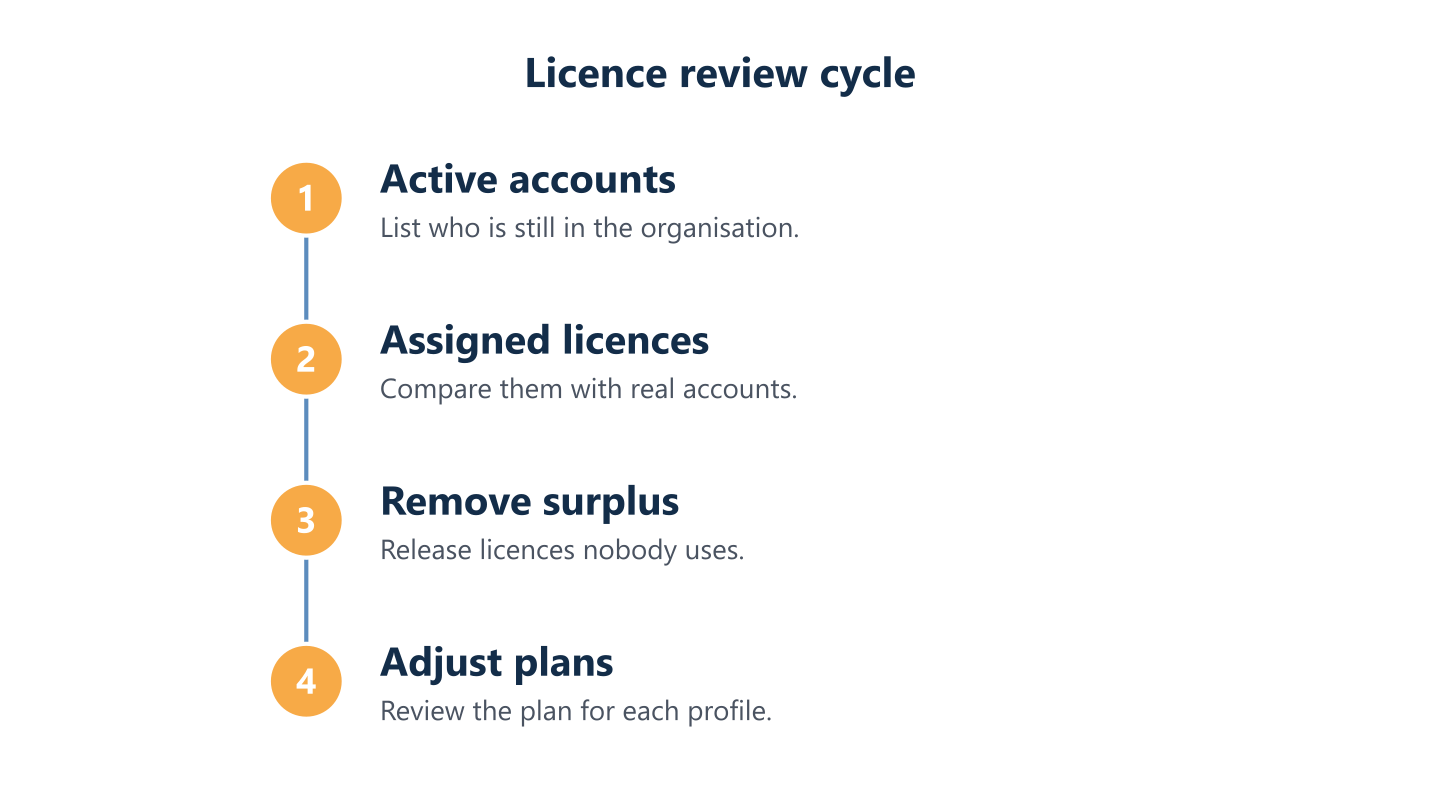
Three common mistakes are easy to spot once you look for them: one plan assigned to everyone, a plan chosen on cost alone, and licences left on accounts nobody uses. None needs special tools to find. A short routine is enough: list users, profiles and devices, compare them with the plans you hold and check each plan in the current Microsoft documentation. You can run this alone or with outside help. BlueNova IT provides cloud and Microsoft 365 and managed IT services, and also works co-managed alongside your own IT team. Support is in English and Spanish, Monday to Friday 09:00-18:00 CET; scope is agreed per organisation and on-site work is confirmed per project.
Same plan for everyone just in case
Giving everyone the same plan just in case can mean paying for features part of the team never uses. It feels safe, because nobody is left short. The cost is that the fuller plan sits with people who only read mail and join Teams calls, and its extra features still need configuring for each of them. A lighter plan for some roles and a fuller plan for others is easier to justify once each role has been described first.
Choosing on cost alone and forgetting security
Staying on the lightest plan with no security or device-management plan leaves gaps unaddressed. A low cost per user looks sensible until a laptop is lost or a mailbox is phished and nobody has decided what protects the account. The answer is not always Premium. Decide how sign-ins, devices and data will be protected, then check which plan, add-on or separate tool provides it. Cost belongs in that decision, but it should not be the only input.
Preparing a review and questions for a provider
Licences left on accounts that are no longer used are a quiet and easily reviewed leak. Before talking to a provider, prepare an inventory of users and roles, shared accounts, devices, the plan each person holds and any add-ons. Mark accounts with no recent sign-in and people whose plan no longer matches their role. Your questions then become specific: what each plan covers for these roles, who configures and maintains the security features, and what the scope includes.
Read the steps as text
Active accounts, assigned licences, remove surplus, adjust plans
A sound decision starts with describing user profiles, devices and data before comparing plans. Once you know who needs installed apps, who handles sensitive information and who works away from the office, the three plans stop looking alike. Limits, variants and add-ons still need checking against the current Microsoft documentation, because they change. Treat the choice as one to revisit as your team and the plans change, and write down the date and source of each check so the next review starts from the same point.