
There is no single right answer for every small company: decide application by application, not for the whole business. Standard services that do not depend on your local network, such as email, shared files and collaboration, usually fit well in the cloud. Anything that depends on equipment in the office, on software that only runs locally or on an unreliable internet line may still justify a server on site. And a hybrid setup is often just what you get when you decide one application at a time, not a compromise forced on you.
This guide is the decision step between two we already publish: choosing cloud services for your business, which compares SaaS, PaaS and IaaS, and IT infrastructure management, which explains what it covers and how to choose a provider. We do not repeat them: you get the questions that settle the choice and a way to split the work afterwards. We recommend no brands and quote no prices, because both depend on your case.
Questions about this guide? Talk it through with us
What is the difference between an on-site server, the cloud and a hybrid setup?
The real difference is who maintains what. On site, the equipment is on your premises and maintenance falls to you or your IT provider. In the cloud, part of the work moves to the provider, but some tasks stay yours. Hybrid runs both. The table summarises what matters most.
| Criterion | Server on site | Cloud | Hybrid |
|---|---|---|---|
| Where the equipment is | In your office, a server room or a cabinet you control | In the provider’s data centres | Partly in your office, partly with a provider |
| Who maintains the hardware | You or your IT provider | The provider, depending on the service | Each side, depending on where the application sits |
| If the internet line fails | Local services can remain available if local power, networking and required dependencies work | Access depends on the connection | Local services can remain available if local power, networking and required dependencies work; cloud services depend on connectivity |
| If the equipment fails | It has to be repaired or replaced | The provider repairs or replaces its own hardware; what that means for your service and data depends on the service model and the contract | Depends on the application affected |
| What always stays with you | Everything, including patching and backups, until someone is named for them | Your data, accounts, access and configuration | Both sets, plus the join between them |
In the cloud, the exact split depends on the service model, and that comparison is in our cloud services guide. For this decision it is enough to remember that, according to Microsoft Learn’s shared responsibility documentation, in every model the responsibility for your data, your accounts, access management and the devices people connect from stays with you, in the sense of who is expected to configure and operate it. For a small company, "hybrid" is usually specific: email and documents are in the cloud, and one or two servers in the office keep whatever cannot leave, such as a line-of-business program or the link to machinery. What matters is that it is a deliberate decision, not a loose end nobody dared switch off.
Which questions should you answer before deciding?
Six questions help structure the decision. Answer them for each application separately: email and the line-of-business program need not end up in the same place. If you cannot answer one, that is a useful signal in itself: you probably lack an inventory of what you have.
1. What is the application and what depends on it?
Start with a list of what runs on each server today: applications, databases, files, email, printing, backups. For each item note who uses it, which other systems need it and who understands it. An old server may be holding up a task nobody remembered, such as the folder a scanner saves to.
2. What must keep working if the internet fails?
A cloud application can only be reached while your connection works. Spain’s INCIBE makes the same point (in Spanish) about cloud backups: without internet access you cannot reach the information. Ask what work would stop in a one-hour outage and what in a one-day outage. If something cannot stop, you have two main routes: keep it local or strengthen the connection with a second line or a fallback plan. Watch for hidden dependencies: if people’s sign-in lives in the cloud, a local program may stop working without internet even though your server is still running. For companies with several sites this question weighs heavily, and network and infrastructure planning is the other side of the same decision.
3. Do equipment, software or suppliers force it to be local?
This is a frequent and legitimate reason to keep a server on site. Some business or production programs only run locally, or their maker does not support another environment. Elsewhere, equipment in the office, such as machinery or readers, needs to talk to something close and fast. Before assuming "it cannot be moved", ask the software maker which environments it supports; sometimes a hosted version exists, and sometimes the answer is a clear no.
4. Who will do the patching, backups and monitoring?
The tasks do not disappear, they change hands. On an on-site server someone must apply patches, check that backups run and can be restored, and review alerts. In the cloud, the provider looks after the platform it manages; you keep accounts, permissions and configuration, and you should confirm in writing who backs up your data and who tests a restore. Write names, not departments: "file server patching: person or provider X, monthly check". If that sentence has no name today, it is the first problem to solve, whatever you choose. For backups, our backup and recovery guide explains how much you can lose and how long each system takes to come back.
5. How long will the equipment last and what will it cost to keep it in good order?
A server has a working life, and so does its operating system: vendors publish how long they provide security updates. For example, Microsoft’s Windows Server 2016 lifecycle page shows an extended support end date in January 2027, so check whether your version is already past its own. When you compare, add up what an on-site server costs over its whole life: the equipment, its replacement, licences, power, space and the time of whoever looks after it. Set that against what cloud fees would keep costing in a few years, because they can grow with users, storage and licences.
6. How would you leave, and where does the data sit?
Before you sign with a provider, make sure you know how you would leave: our cloud services guide lists the questions about data export and transition. INCIBE says (in Spanish) that contracts and service-level agreements should be reviewed and should specify points such as data isolation or who makes backups and applies updates. With an on-site server the question is the reverse: if the person who knows it leaves, what is documented? In both cases accounts, licences and data should be in your company’s name. If where your data sits has legal implications in your sector, ask your legal adviser: we do not give legal advice on data residency.
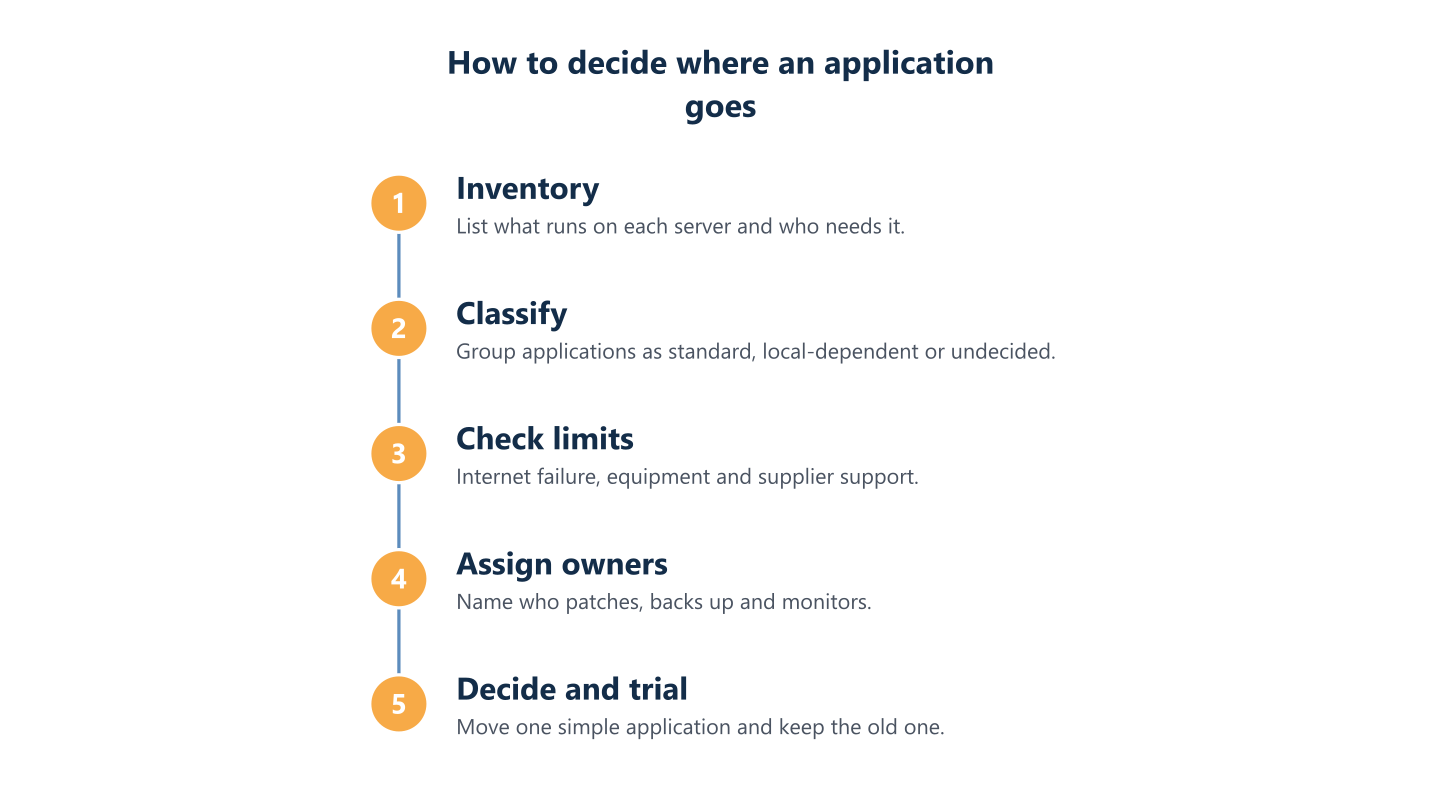
Read the steps as text
Inventory, classify, check limits, assign owners, decide and trial
When does each option usually fit?
There are no fixed rules, but there are patterns. These four are illustrative examples, not real clients:
- A single office with email, documents and little else. The cloud usually fits almost everything; a server on site may add maintenance for little benefit.
- A management program that only runs locally, with connected equipment. Keeping that server in the office usually fits, well patched and with tested backups, while everything else moves to the cloud.
- Several sites and people working from home. A hybrid setup is often worth considering: identities, email and documents in the cloud, and a local server only where a site needs it for speed or its own equipment, remembering that local programs may then depend on the internet for sign-in (question 2).
- A site with an unreliable internet line. Keep local whatever cannot stop and improve the line before moving anything else.
How to stop hybrid becoming two environments with no owner
Hybrid setups get hard to run when nobody answers for the join between the two halves. Keep one inventory that says which application sits where and who answers for it, and name one person responsible for the join.
How do you move an application to the cloud without stopping the business?
Gradually, and with a way back. Pick something simple and low-risk first, such as one department’s files, and use it as a trial before moving the next. Keep the old server available, read-only or isolated where you can, and backed up, until you have restored real data from the new system and users confirm everything is there. Then retire it on a date you set, so it does not become an unpatched leftover. The detailed preparation is in our cloud services guide.
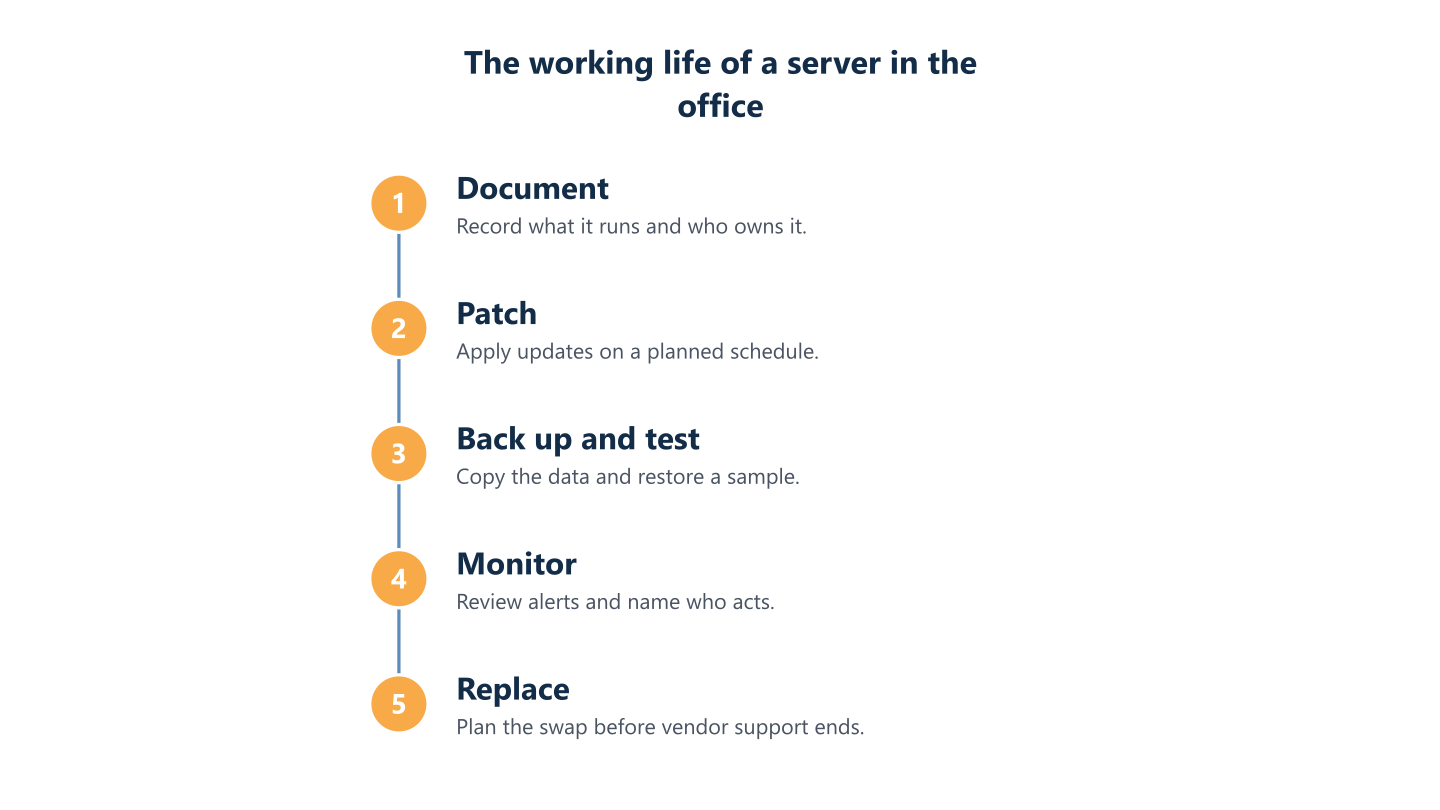
Read the steps as text
Document, patch, back up and test, monitor, replace
What can BlueNova IT do in this decision, and what stays yours?
BlueNova IT is the IT services brand of Bluenova OÜ, based in Tallinn. We work mainly with small and midsize companies in Europe, often with distributed teams and no full in-house IT. Scope is agreed with each organisation, and co-managed IT, run jointly with your own team, is a service we offer regularly.
Servers on your premises
We manage servers that sit on a client’s premises, per project: we apply patches, coordinate with you the replacement of servers that reach the end of their life and review their alerts, within the agreed scope, during our published hours. We do not act on alerts outside those hours. If your business cannot accept that for a given application, plan for it explicitly (redundancy, a provider that offers cover outside office hours, or your own on-call arrangement) rather than assume cover that does not exist. On-site work is confirmed for each project.
Cloud and Microsoft 365
On the cloud side we start with a licence inventory and a read of your current tenant, and if something is moving we prepare a plan covering what migrates and what is archived. The detail is on our cloud and Microsoft 365 page. If the decision touches internet lines or several sites, our single point of contact, in English or Spanish, coordinates with operators and local suppliers at each site within the networks and infrastructure service.
What stays yours and what we do not do
Where each application sits is your company’s decision; we can start with interviews with your team and, if you want one, deliver a prioritised roadmap. Accounts, licences and data stay yours, administration accounts are created or kept in your name, and the environment documentation is yours, kept where you can always reach it. We do not offer support outside our published hours, Monday to Friday 09:00 to 18:00 CET, or legal advice, and this guide does not recommend specific brands.
Sources and further reading
Go to the source rather than a summary, including ours. Shared responsibility: Microsoft Learn and the UK NCSC. On contracts and cloud risks for small businesses (in Spanish): INCIBE’s cloud section and its article on cloud backups. On end of support: the Windows Server 2016 lifecycle page, as an example of what to look for in a vendor listing.
In short: make the inventory, answer the six questions application by application and write down who looks after what. Standard services tend towards the cloud, what depends on the office tends to stay, and anything mixed needs a named owner. If you want to test your own case, BlueNova IT can talk through your case, with the scope agreed for your organisation.