
To migrate Google Workspace to Microsoft 365, inventory your users, data and integrations, prepare identity, licences and your domain, run a pilot, then move mail, calendars and files in batches before switching mail routing. Finish by checking permissions and rules, then close down Google. Timing and scope depend on your data and users.
Migrations often go wrong before any data moves: an unlisted shared mailbox, a forwarding rule nobody remembered, or an app that signs in with a Google account and quietly stops working. Moving mail, calendars and contacts is the part vendors document well. The decisions around it are what this guide covers: whether to move at all, what to prepare, how a phased move runs and what to check afterwards.
You will also see what typically moves cleanly and what needs a decision, such as shared drives, sharing permissions and Google-native files. We write for owners and IT leads in small and midsize companies who have to run this without a dedicated migration team. At BlueNova IT we handle cloud and Microsoft 365 work alongside IT consulting and, where it helps, work co-managed with your own IT team. Tool names, limits and prerequisites change, so treat the vendors' current documentation as the final word on every technical detail.
Questions about this guide? Talk it through with us
Should you migrate from Google Workspace to Microsoft 365?
Moving platforms is a business decision first and a technical project second. Test your reasons against the reasons to wait, and put the inventory on paper before you commit to a date. BlueNova IT offers cloud and Microsoft 365 services alongside IT consulting, so we can review the inventory and the decision with you. Scope is agreed with each organisation, and we do not promise outcomes, timelines or savings. The table shows where the planning effort usually sits; how completely each item moves depends on the tool, so check the current documentation.
| Area | What typically moves | What needs planning | What to check |
|---|---|---|---|
| Mail and calendar | Messages, events, contacts | Labels versus folders, shared calendars, automatic replies | Rules, delegates, a sample of old items |
| Files | Personal drive content | Shared drives, sharing permissions, Docs, Sheets and Slides | Who can open what, externally shared links |
| Identity | Nothing migrates; accounts are created in Microsoft 365 first | Account creation, groups, sign-in method, apps that use Google sign-in | Third-party app access, multi-factor authentication |
| Devices | Mail clients reconnected | Profiles, mobile sync, management | Each device type signs in |
Reasons that usually hold up
Standardising on Outlook, Teams and the Office apps is the most common reason that survives scrutiny, particularly when staff already receive Microsoft documents from customers and edit them in Word or Excel every day. Consolidating tenants after a merger is another: two mail systems, two sets of sharing rules and two admin consoles cost attention every week. Licensing overlap also counts, when some staff already hold Microsoft 365 apps while the rest use Google Workspace. A reason holds up if you can name the daily task that gets easier and the person who will confirm it did. "We want to modernise" is a mood, not a reason. Write down two or three reasons and the evidence for each before you spend any time on tools.
Reasons to pause
Waiting is sometimes the sensible decision. Heavy reliance on Google-specific apps, such as Apps Script automations, Google Forms workflows or sites built on Google Sites, means each one needs a replacement or a rewrite, and that work is easy to underestimate. Unresolved data ownership is another warning sign: if nobody can say who owns a shared drive, nobody can approve what happens to it. A busy period for the business, such as a year-end close, a product launch or a seasonal peak, is a poor time to change how everyone reads mail. Finally, pause if nobody will be available to support users afterwards. A migration postponed to an agreed date usually goes better than a rushed one that leaves people without help.
What to inventory before you decide
An inventory of accounts, shared mailboxes, groups, forwarding rules and apps that sign in with Google turns an opinion into a plan. Start with every user account, including former staff whose mailboxes are still kept, and flag service accounts and shared mailboxes. Add groups and mailing lists, because they behave differently on each platform. Record forwarding rules, filters and delegated access, which people forget until mail goes missing. List shared drives with their owners and any external sharing, then note how much data you hold and how old it is. Finally, find every app and device that signs in with Google or sends mail on its own, such as accounting software, ticketing tools and scanners. Put it in a spreadsheet with an owner against each line; the unowned lines are the ones that cause trouble.
If you are moving from on-premises instead
Starting from an on-premises mail server or file server changes the picture. There is no Google account to retire, but there is hardware, a directory and usually a network built around the old setup. Users and groups typically come from a local directory, so identity planning means deciding how that directory relates to Microsoft 365. File shares do not have a Google-style sharing model; permissions are usually folder-based and need mapping to a new structure. Your internet connection matters more too, because moving data depends on it, and devices that used to connect locally will behave differently. The methods and tools differ from the Google route, so check Microsoft’s current documentation for your specific source system. This guide does not cover those methods.
What to plan before you move anything
The prerequisites for a Google Workspace to Microsoft 365 migration are mostly decisions made in advance, and they shape the result more than any tool does. Use these steps as a migration checklist, and confirm each prerequisite in the current Microsoft and Google documentation, because requirements and tool names change.
- Create the Microsoft 365 tenant and decide who administers it.
- Provision users and assign licences before any data is moved.
- Verify your domain and plan mail routing between both platforms.
- Decide what data is in scope and clean up what is not.
- Plan devices, sign-in and access, including multi-factor authentication.
- Agree who communicates with users, and when.
Identity, devices and access are easier to plan together than one by one. BlueNova IT works on cloud and Microsoft 365, networks and infrastructure, and cybersecurity, so we can look at them as one picture. Support is in English and Spanish, Monday to Friday, 09:00-18:00 CET, and scope is agreed per organisation.
Users, licences and identity
Users usually need to exist in Microsoft 365, with licences assigned, before their data can be moved, so the user list from your inventory is the first thing you build. Decide how accounts will be created: by hand for a handful of people, or in bulk from a file for larger teams. Match each person’s new address to the old one, and decide what happens to aliases and shared mailboxes. If licences are charged per user, cost grows with headcount, which is why former staff and unused accounts should be settled early, not carried across by default. Then look at sign-in: apps that let staff log in with a Google account need a new route, and multi-factor authentication is best switched on in the new tenant from the start. Check the current licensing documentation for what each plan includes.
Domain, DNS and mail routing
The domain has to be verified, and mail routing between both platforms is usually planned in advance. Verification typically means adding a record to your DNS to prove you control the domain. Do it early, because DNS changes may depend on whoever manages your domain. During the move, both platforms may need to handle mail for the same address, so many plans use a subdomain or a routing rule to pass messages to the right place until everyone has moved. Lower the time-to-live on your mail records ahead of cutover so the change spreads sooner, and note the current values so you can restore them if needed. Check who holds the registrar login and the DNS provider login before you start; missing credentials are a common cause of delay. After the move, update SPF, DKIM and DMARC for the new platform.
Data scope and clean-up
Deciding what not to migrate shortens the move and tidies the new tenant. Old mail is the usual candidate: many organisations choose a cut-off date, move recent mail and archive the rest. Excluding folders, labels or large attachments can reduce the data in transit. In Drive, look for abandoned files, duplicate copies and personal files that never belonged to the company. A Google Drive to OneDrive migration and a shared-drive move usually land in different places, so decide the destination for each. Decide what happens to the data of people who left: keep, archive or delete according to your own retention rules. Record every decision, because retention settings can make items look missing after a move, and a written scope helps you tell a gap from a choice.
Devices and access
Every laptop, phone and tablet that touches company data is part of the migration. Windows laptops may need re-enrolling so they follow your new sign-in and security settings, and phones usually need their mail profile removed and added again, which each user has to do or have done for them. Decide whether personal phones can reach company mail, under what conditions, and what happens if one is lost. Check shared devices and anything that sends mail on its own, such as scanners and monitoring tools, because fixed credentials often stop working after cutover. Make a device list with a named person and a date for each. Access is also about who can see what in the new tenant, and that is best set deliberately on day one, not inherited from the old setup.
How a phased migration works
A phased Google Workspace to Microsoft 365 migration, step-by-step, follows a familiar sequence, even though tools and exact steps differ and should be confirmed in the current documentation.
- Pilot: a small group moves first to test the process and the support routine.
- Pre-stage: older mail and files are copied ahead of time while everyone keeps working in Google.
- Batches: remaining users move in groups, so support can cope with the questions.
- Mail cutover: mail routing is switched to Microsoft 365 and users start with the new mailbox.
- Delta pass: a final run carries over what changed since the last copy.
The order and pace depend on the organisation: how many people move, how much data there is, which migration tool you choose and how much support you can offer during the change. BlueNova IT can help you agree the plan and responsibilities, scope permitting, including who approves each stage and who answers users. We do not state durations or downtime figures here, because they would be guesses.
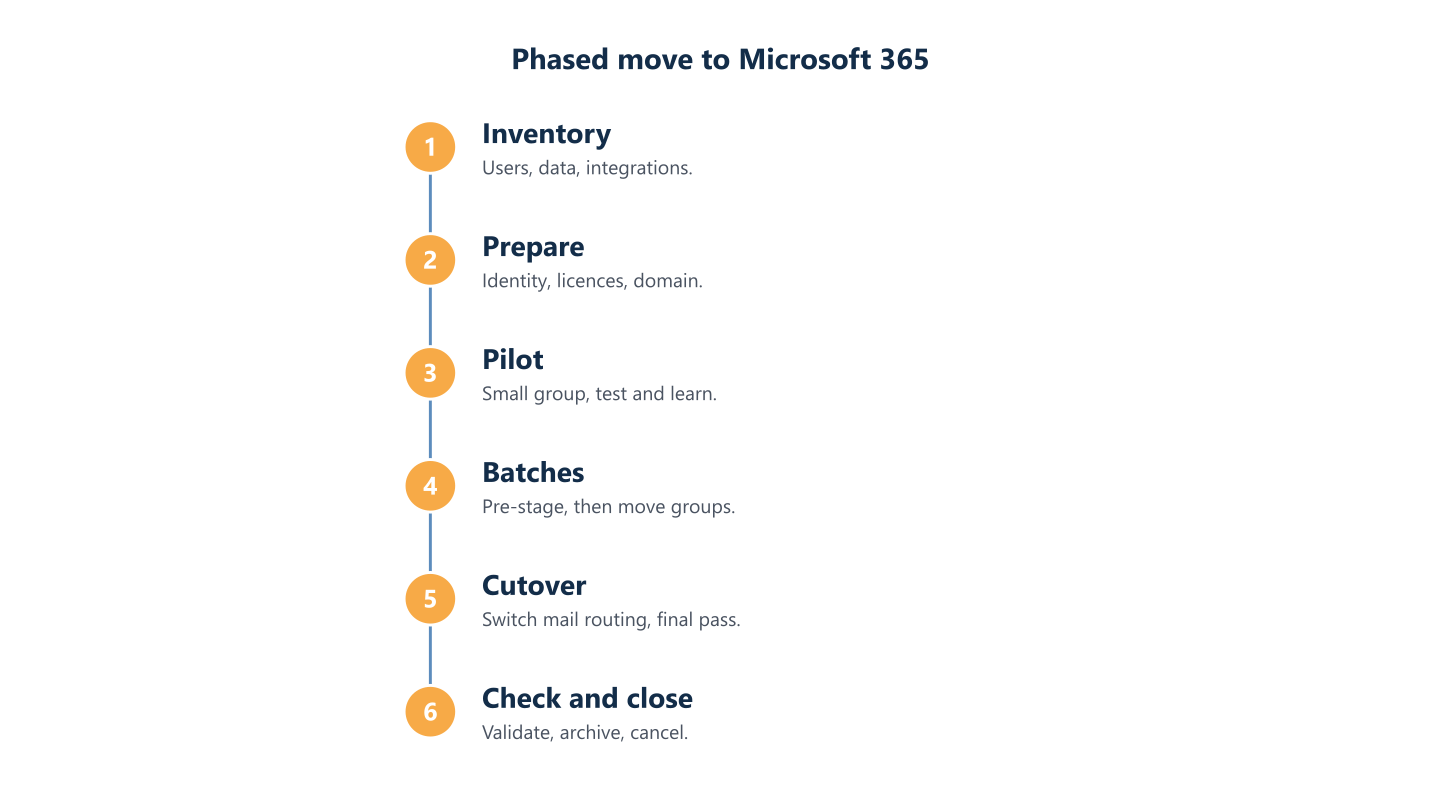
Read the steps as text
Inventory, prepare, pilot, batches, cutover, check and close
Start with a pilot group
A pilot group tests the process and the support routine before everyone is affected. Choose people from different roles: someone with a large mailbox, someone who relies on shared calendars, a heavy Drive user and a person who reads mail mostly on a phone. Include at least one colleague who reports problems clearly. Run the pilot through the full path, from account creation and data copy to sign-in on each device and a mail test in both directions, and write down every question the pilot users ask. Those questions become your user guide and your help desk script. For help planning that routine, our guide to help desk support services covers what to ask a provider. Fix what the pilot shows before you widen the group.
Pre-stage, then batches
Moving older data ahead of time means the final pass only has to carry recent changes. During pre-stage, users keep working in Google while a migration tool copies historical mail and files in the background; check the current documentation for how your chosen tool handles this. Batches then bring users across in groups. Group people by team, so colleagues who share calendars and mailboxes move together and are not split across platforms. Keep batches small enough for whoever supports users to handle the questions. Between batches, review failed and skipped items before starting the next one, because a tool report only helps if somebody reads it. Items can fail for reasons such as size or permissions, and each failure needs a decision.
The mail cutover
Switching mail routing is the point users notice, so it needs a communicated window and a rollback thought through in advance. In a Gmail to Exchange Online migration this is the moment mail starts arriving in the new mailbox. Pick a quiet time, tell everyone what changes and what they must do, and keep the notice short: new sign-in, new app, who to ask. The cutover itself typically means changing the records that tell the internet where to deliver your mail. That change takes time to spread, so some messages may land on the old system for a while, and you should check both mailboxes. Decide the rollback before you start: what you would change back, who decides, and by when. Afterwards, test messages in and out, including from outside the company and to groups.
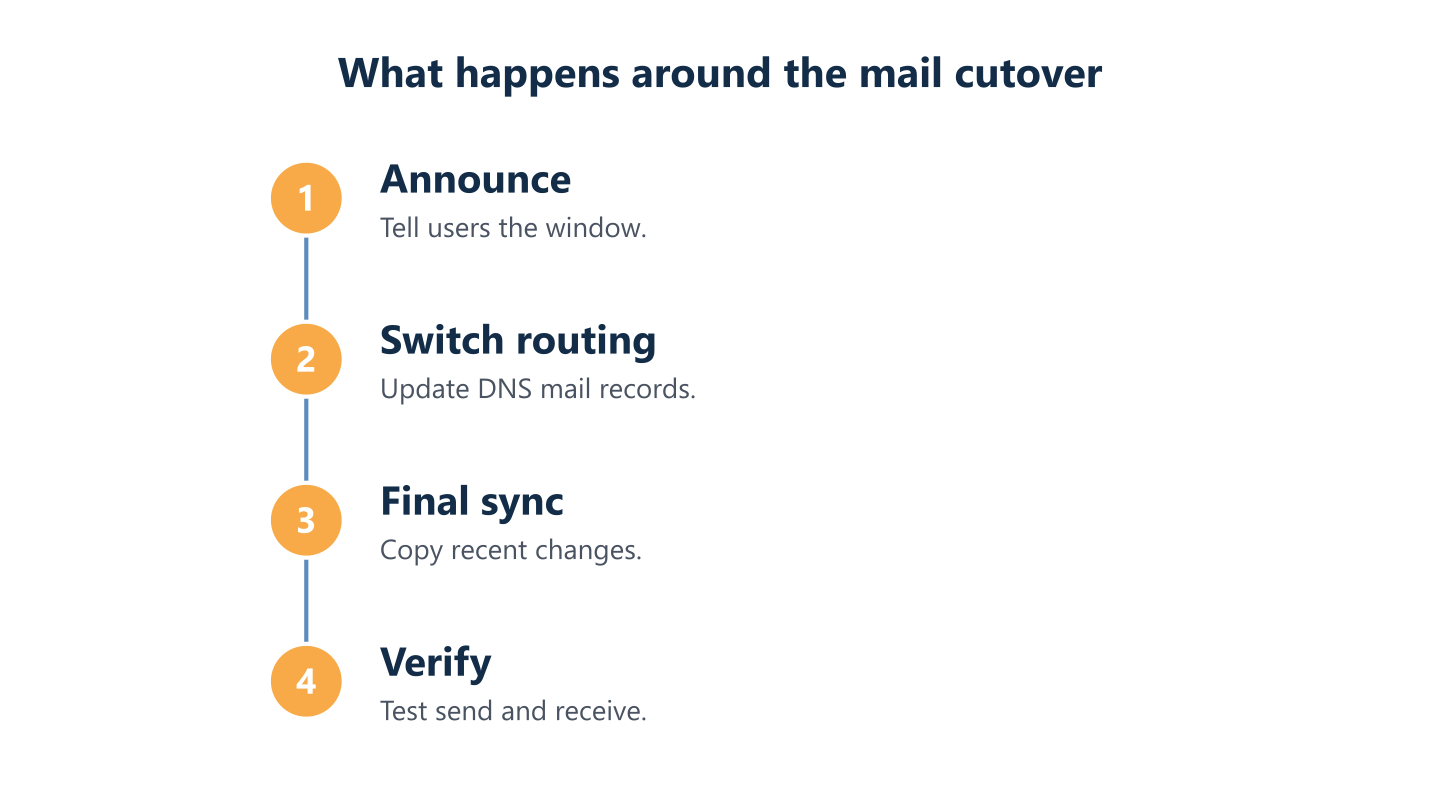
Read the steps as text
Announce, switch routing, final sync, verify
The final delta pass
The final delta pass picks up whatever changed after pre-stage and between batches: new mail that reached the old system, edited files and new calendar entries. Run it after mail routing has switched, so nothing new keeps landing in Google, and repeat it if your plan calls for more than one pass. Compare what you expected with what arrived: spot-check mailboxes of different sizes, and open a few shared calendars and shared folders as an ordinary user would. Keep Google Workspace running and accessible during this period so you can recover anything that looks missing, and do not suspend accounts or delete data yet. Record the date of the final pass; after it, new work happens only in Microsoft 365 and the post-move checks can begin.
What migrates cleanly and what needs planning
Mail, calendars and contacts are the most mature part of any move; files and sharing are where the decisions sit. Treat the comparison table earlier in this guide as a starting list, not a promise. Some items do not carry across, others arrive in a different form, and the exact list depends on the tool and on current vendor documentation, so read it before you set expectations with colleagues. Shared calendars, room bookings, automatic replies and some contact fields are the kind of detail that often needs a manual step. Sharing permissions are rarely a one-to-one match, because Google and Microsoft model access differently.
If an item matters to the business, test it in the pilot and write down the result. Do not assume it moved.
We can discuss each data type with you; scope is agreed per organisation. The aim is to mark every item as moving, moving with a change, or left behind on purpose. We make no claims about tool performance, and no migration should be assumed to carry everything across; the point of the review is to find the gaps while there is still time to deal with them.
Mail, calendar and contacts
Mail, calendars and contacts are the best-supported items, with known gaps, such as calendar sharing or room bookings, depending on the tool; check the current documentation. Labels are handled as folders or categories, depending on the tool, and a message carrying several labels can look different afterwards, so look at examples in the pilot. Rules and filters may arrive switched off, which means somebody has to review and re-enable them. Automatic replies, delegated access and shared calendars are usually worth setting up again by hand and testing. Retention or archiving settings can make items look missing when they are held elsewhere, so check those settings before you raise an alarm. Some contact fields may not carry across. Check the current documentation for the full list.
Drive files and shared drives
Shared drives and sharing permissions need a deliberate design in OneDrive and SharePoint. Personal drives typically map to each person’s OneDrive, while shared drives typically map to SharePoint sites or libraries. That is a design decision, not a copy job: decide who owns each site, how it is structured and who may share outside the company. Google sharing is often built from years of individual shares, so a file may be visible to people nobody remembers adding. Moving it as it stands can reproduce the mess, whereas an audit before the move lets you tighten access. Tools treat permissions and links differently, and that changes over time, so check the current documentation. List important links, such as those in contracts, wikis and customer emails, because they will point at Google until someone updates them.
Google-native files and sharing
Google Docs, Sheets and Slides can be converted or left as links; the choice affects how people work afterwards. Conversion produces Word, Excel and PowerPoint files that open in the Office apps, but formatting, formulas and add-ons do not always survive, so test your most-used spreadsheets, especially those with Apps Script, custom functions or heavy formulas. Leaving files as links keeps them in Google, which means you still need Google access and conflicts with closing Google down. Decide per type: convert the documents you will keep editing, archive the ones you only read, and leave out the ones nobody has opened for years. Ask the owners of key spreadsheets to check their files after conversion, because they know what correct looks like.
Chat, groups, sites and archives
Beyond mail and files sit the items that tend to be forgotten. Chat history may not map to Teams the way you expect, so decide whether it matters or whether starting fresh with a short note is acceptable. Google Groups used as mailing lists or shared inboxes need an equivalent in Microsoft 365, such as a group or a shared mailbox, chosen per use case. Google Sites usually have no direct counterpart and may need rebuilding. Archive and retention data needs a decision on whether you export it and keep it elsewhere, since it may be subject to your own retention obligations. Tasks and notes follow the same rule: list them first, then decide. Check the current documentation for what each tool carries.
Post-move checks and closing down Google Workspace
The first mail that arrives in Microsoft 365 starts the checks; it does not end the project. Validate mailboxes, calendars, contacts and file access against what the pilot taught you, and have a few real users confirm what they can and cannot see. Support people closely for the first weeks: expect questions on sign-in, phones and where files went, and keep a short list of known issues where everybody can read it. Before cancelling Google, set up the new tenant properly with multi-factor authentication, device management and a backup you have tested, and check the current documentation for the options available. Keep your domain registration, because mail for your addresses depends on it, and agree what Google data is archived and for how long. Only then close Google Workspace down. BlueNova IT supports Microsoft 365 environments and can provide managed or co-managed IT afterwards. Support is in English and Spanish, Monday to Friday, 09:00-18:00 CET.
Validate mailboxes, rules and permissions
Compare mailboxes, calendars and file access against the pilot findings, and re-check any rules that were migrated switched off. Sample mailboxes of different sizes and open a handful of shared mailboxes, groups and calendars as an ordinary user would, not as an administrator. Check that delegates still have the access they need and that nobody has access they should not. Look at forwarding: old rules that point back to Google, or to former staff, can send mail in circles or to the wrong person. Test sending to and from outside addresses and check spam and quarantine folders. Confirm that shared drives have the intended owners and that external sharing is limited to what you decided. Write down what you checked and the result, so someone else can pick the work up.
Support users through the first weeks
Expect a steady flow of small questions after cutover: where is a file, why does the phone ask for a password, how do I open a shared calendar. Make the answers easy to find with a one-page guide built from the pilot questions, a single place to ask and a named person who replies. Review the questions after the first few days and update the guide; repeated questions point at something to fix, not at users. Check that multi-factor sign-in works on every phone and that device enrolment is complete, since a half-finished setup shows up as odd errors. Give the busiest people, often those with the largest mailboxes or the most shared files, attention first.
Set a security and backup baseline
A new tenant is only as safe as its settings, and defaults are not always your policy. Review who holds administrator roles, require multi-factor authentication, and decide which devices may reach company data and how external sharing is controlled. Check the current Microsoft documentation for the security options your licences include. Then decide how the new tenant will be backed up: storage in a cloud service and a separate, tested recovery copy are not always the same thing, so check what your plan covers. Our guide to backup and recovery for business explains recovery point and recovery time objectives. Finally, keep your domain registration, and agree what Google data is archived and for how long before you cancel.
Planning your Microsoft 365 move
Whether you work with an external provider, your own IT team or both, a Microsoft 365 migration plan works best when responsibilities are written down. Use these steps to frame the conversation.
- List what you want moved, what you want left behind and what you do not yet know.
- Name one owner on your side for decisions and sign-off.
- Split the work between identity, mail routing, data moves and user support.
- Agree how pilot results will be reviewed, and by whom.
- Decide how users will be told and who answers their questions.
- Agree who covers the first weeks after cutover.
BlueNova IT offers co-managed IT, run jointly with your own IT team, and managed IT, and our IT consulting can help review the plan. Scope is agreed per organisation, and on-site or installation work is subject to confirmation for each project. We do not name clients, quote results or give a fixed quote in an article; the conversation starts with your inventory.
What to agree before work starts
Write down who handles identity, mail routing, data moves, user support and sign-off. Many disagreements in a migration come from an assumption that someone else was doing a task. Be specific: who creates accounts and assigns licences, who changes DNS records and holds those logins, who runs the migration tool and reads its reports, who answers users, and who decides when to proceed to the next batch. Add the boundaries: what is in scope, what is excluded, such as Google Sites or old archives, and what the provider will not touch. Agree access too. A provider will need administrative rights in both environments, so decide how they are granted, logged and removed afterwards. Put it in a short document that both sides approve.
Where co-managed IT helps
Co-managed IT lets your own IT contact and an external team share the work. It suits companies with one IT person or a small team who know the business and the users but not the migration tooling, or who cannot spare the time to run it alone. Typically your team keeps decisions, user relationships and day-to-day knowledge, while an external team can add capacity. It also helps after cutover: if you want it, managed IT services can continue afterwards, as agreed, instead of handing over to someone new. What is shared and who leads each part is agreed per organisation. Support is in English and Spanish, which helps teams that work in both languages.
Questions to ask a provider
Good questions focus on scope, assumptions, exclusions and what happens if something does not move as expected. Ask which data types are in scope and which are left out. Ask what the plan assumes about your data volume, your users and the disruption you can tolerate, and what changes if those assumptions prove wrong. Ask how problems are reported and who decides on a rollback. Ask who holds administrator access and how it is removed at the end. Ask what you receive when the work finishes, such as an inventory, a list of exceptions and notes for your team. Be cautious of promises of no disruption, perfect fidelity or a fixed duration made before anyone has seen your environment: results depend on your data.
A Google Workspace to Microsoft 365 move goes well when the inventory, the data decisions and the support routine are settled before mail routing changes. Tools matter, but they are the smaller part of the work. Start with an honest inventory of users, shared mailboxes, shared drives, forwarding rules and every app that signs in with Google. Then choose what moves, what is converted and what is archived, and run a pilot before anyone else is affected. For tool names, limits and prerequisites, rely on the current Microsoft and Google documentation, which changes more often than any guide can. If you would like a second pair of eyes on your inventory or your plan, we are happy to talk.