
CCTV and door access put cameras, recorders and readers on your network, so plan PoE power per switch, cabling, bandwidth, storage, a separate network segment, named admin accounts, firmware updates, a tested backup and a retention period. Exact needs depend on the cameras and the site, and data protection rules depend on your country.
Many businesses choose the cameras first and think about the network when the installer arrives. That is when a switch runs out of power, footage fills the disk early or a camera ends up on the same network as staff laptops. This guide covers what your IT must plan first, so the conversation with any supplier is clearer.
Questions about this guide? Talk it through with us
Start with what the system must do and what it asks of the network
A camera system is a list of jobs before it is a list of equipment: deter, record evidence, control who enters which room. At BlueNova IT we treat physical security as it connects with the IT environment, so a first step is to review the premises, the existing equipment and who is responsible for it. On-site work depends on location and is confirmed per project. Where footage is kept shapes what the network must carry:
| Criteria | On-site recorder | Server or NAS with video software | Cloud service | Hybrid (local plus cloud copy) |
|---|---|---|---|---|
| Where footage sits | On the recorder disks | On your own storage | With the provider | Locally, plus an off-site copy |
| Network load | Cameras to recorder | Cameras to server | Internet upstream (depends on recording mode) | Local traffic plus internet upstream |
| Depends on | Disk capacity | Server upkeep and patching | Internet capacity and provider terms | Both sides working |
Cameras and door readers are network devices
Cameras, recorders, door controllers and card readers are all devices on your network. Each one needs an IP address, power, an account, software updates and a named person responsible for it. Treating them as stand-alone equipment is how a camera ends up unpatched with a factory password. A useful test is to ask whether the device would appear on your IT asset list if it were a laptop. If it would not, nobody is watching it. Keep a simple register with the device, its location, its owner and the date it was last checked.
Purpose, areas and sites come before the equipment list
Write down what each camera or reader is for before choosing equipment: deterrence, evidence after an incident, or access to a room. The purpose drives resolution, recording mode, retention and who may view the footage. A camera meant to deter can have a different specification from one meant to identify a person at a door, and both differ from a reader that only controls entry to a comms room. List the areas and every site, then note which need continuous recording and which only need event-based capture. The network requirements follow from that list, and the equipment list comes last.
Who owns the system, the network and the footage
Settle who owns what: the installer or supplier, facilities, and whoever looks after IT. Gaps between them are where forgotten default passwords and unpatched devices live. Decide who holds the admin accounts, who approves access to footage, who handles firmware updates and who calls the supplier when a camera drops off the network. For multi-site teams with no full in-house IT, this can be left unwritten. A one-page responsibility table, agreed before go-live and reviewed when staff or suppliers change, is quick to write and removes much of the confusion.
Power, cabling, bandwidth and storage: sizing the basics
Ask your supplier to work through these steps and show the arithmetic from the manufacturer data sheets. The actual design depends on the site and is agreed per organisation. Our networks and infrastructure work and the structured cabling planning guide give useful background.
- List every camera, reader and recorder with the PoE class and power draw shown in its data sheet.
- Add the figures per switch and compare the total with that switch’s PoE budget, leaving headroom.
- Map cable routes and run lengths from each device to a switch, and note where a cable cannot run.
- Check the switch uplinks and the recorder connection against the busiest traffic case.
- Estimate storage from the number of cameras, resolution, compression, frame rate, recording mode and retention.
- Test after a trial period, then correct the sizing with real figures.
PoE budgets: per port and per switch
PoE has two limits: what each port can supply to a device, and the total power budget of the switch. Spare ports do not mean spare power, so add up the device requirements from the data sheets and compare the total with the switch budget. Leave headroom, including for extras such as heaters or infrared illumination on outdoor cameras, which can draw more than the basic figure. Check that the switch can power every device at the same time, for example when all cameras restart together after a power cut, and confirm the budget again whenever a camera is added.
Cabling paths, distances and where the recorder sits
Video is often continuous upstream traffic towards the recorder or server. Size the switch uplinks and the recorder connection for the busiest case, not the average. Wired cabling is the usual choice for fixed cameras; treat Wi-Fi as a last resort because it shares capacity with every other device. If you must use it, our business Wi-Fi site survey checklist covers what to check first. Check each cable run against the distance limit of the cable type. Then decide where the recorder sits: a locked, ventilated room with power protection suits it better than a shelf in the office, and a shorter network path to the cameras keeps the design simpler.
Bandwidth and storage: how to work out the need
Storage depends on the number of cameras, resolution, compression, frames per second, continuous versus event-based recording and the retention period. The camera or video management software vendor usually offers a calculator, so ask for the result and the assumptions behind it. Bandwidth follows the same inputs, which is why the question 'is 30 Mbps enough for CCTV?' has no single answer: it depends on how many streams leave the site and at what quality. Check the real figures after a trial period, then adjust before the system is relied on.
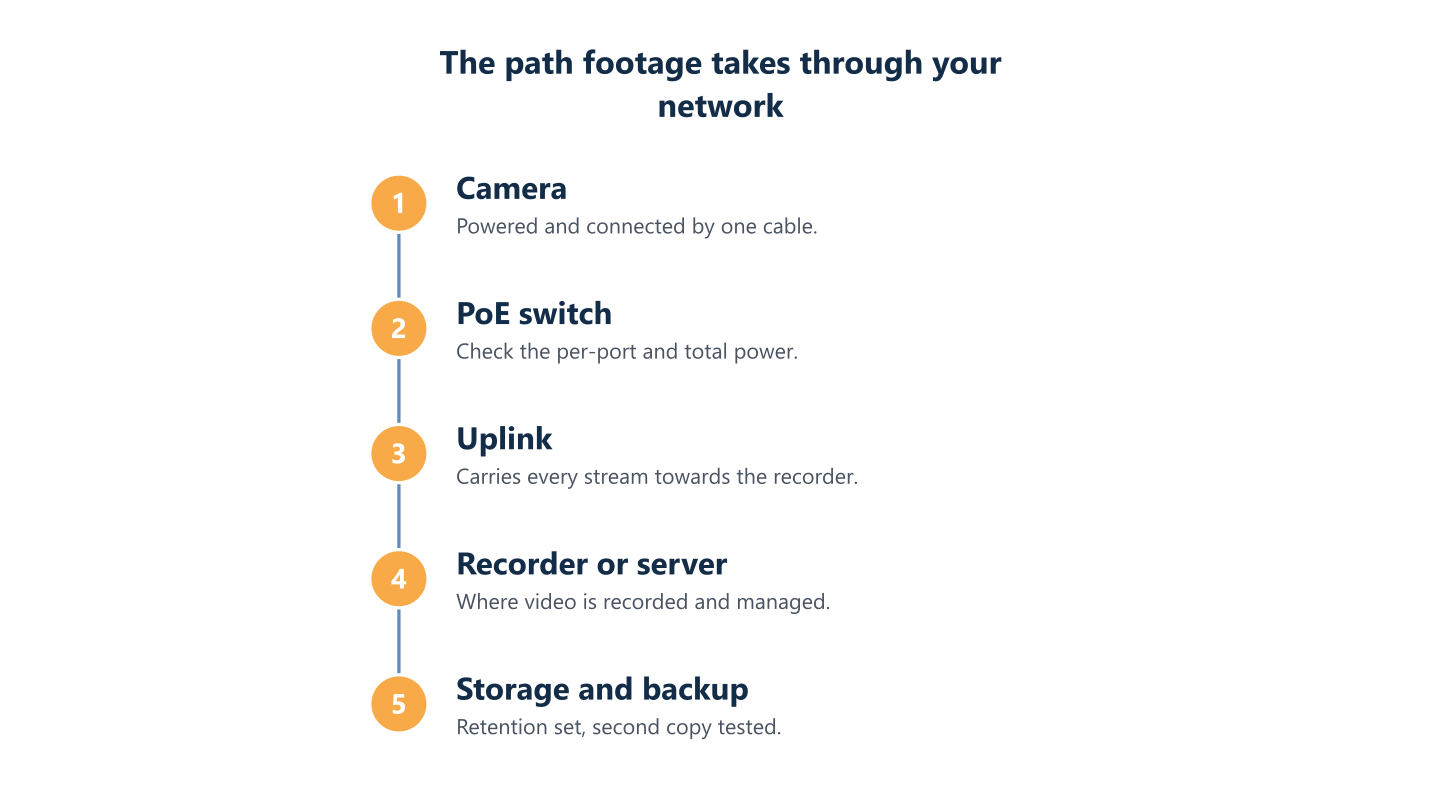
Read the steps as text
Camera, PoE switch, uplink, recorder or server, storage and backup
Segmentation, accounts and remote access
A compromised camera should not be a stepping stone to your file server. How devices connect to the network, who can log in and how accounts are managed are among the points BlueNova IT reviews in its physical security and networks work. Look for these points:
- Separate segment: cameras, recorders and door controllers sit away from staff laptops and servers.
- Firewall rules: only what is needed, such as the recorder reaching cameras and approved viewers reaching the recorder.
- Named accounts: one per person, least access, no shared admin login, removed when people leave.
- No defaults: every factory password changed at installation and unused services switched off.
- Remote viewing: through a VPN or an assessed vendor service, not ports opened to individual cameras.
- Recorded decisions: who may view remotely, from which devices and with what sign-in protection.
Why cameras and door controllers belong on their own VLAN
Put cameras, recorders and door controllers on their own network segment, a VLAN, with firewall rules that allow only what is needed: recorders talking to cameras, and approved viewers talking to the recorder. A different Wi-Fi name or a labelled port alone is not separation; the rules need configuring and testing. Cameras are small computers that can run software that is rarely updated, so if one is compromised, segmentation limits what it can reach. A practical test is to try reaching a staff laptop from a camera port and confirm the attempt is blocked.
Accounts and admin access on the video management system
Use named accounts with the least access each person needs, change every default password at installation, switch off unused services, and remove accounts when people leave. Shared admin logins make it impossible to know who viewed or exported footage. Where the system supports it, give viewers read-only roles and keep export rights to a short list of people. Review the account list on a regular schedule, and whenever a supplier or a member of staff stops working with you, so access does not outlive the reason for it.
Remote viewing without exposing the devices
Prefer remote viewing through a VPN or a vendor service you have assessed over opening ports on the router to individual cameras, which makes each camera reachable from the internet. Decide who may view remotely, from which devices and with what sign-in protection, such as a second sign-in step, and keep a record of that decision. Ask the vendor how its service handles accounts, updates and where footage travels, and treat remote viewing as a feature that needs the same care as remote access to any business system.
Firmware, backup of footage and what happens when something fails
Installing a camera system is the start of the work, not the end. Someone has to apply firmware and software updates, decide whether footage needs a second copy, and know what each failure stops.
A system that nobody maintains and nobody has tested is one you cannot rely on when you need the footage.
As part of the systems and premises review, BlueNova IT can help document the current arrangements and who maintains them; scope is agreed per organisation. For the wider routine, see our guide to IT infrastructure management, and the cybersecurity service page for the broader security picture. The three sections below cover updates, backup and failures.
Firmware and patching: an inventory and an owner
Cameras, recorders and door controllers run firmware that needs updating, and vendors publish fixes for security flaws from time to time. Keep an inventory with model, firmware version and owner, agree who applies updates and when, and try an update on one device before rolling it out to all of them. Retire devices the manufacturer no longer supports, because they stop receiving fixes. Firmware updates are easy to postpone when everything appears to work, so put a recurring review in someone’s calendar and record each change in the inventory.
Backup of footage and how to test a restore
Decide whether footage needs a second copy beyond the recorder, such as another location or a managed cloud store, and for which cameras: the entrance may matter more than a storeroom. Then test that you can actually restore and play the footage on an ordinary workstation. A backup that has never been restored is an assumption. Note how long a restore takes in practice and what happens if the recorder itself is stolen or damaged. Make sure the copy is protected by the same accounts and rules as the original, and repeat the test after any major change.
Failure modes: power, switches, storage and the network
List the failure points and what each one stops: power loss at the switch or recorder, a full or failed disk, a lost uplink, an unreachable recording server, a lost internet connection. A power-protection unit on the recorder and core switch can ride out brief cuts, though it does not replace planning. Remote viewing and cloud copies stop when the internet drops, while local recording may carry on. For door access, agree in advance what happens to doors when the network or controller is down, and have qualified people confirm it fits fire and safety requirements. The IT side of door systems has its own door access control checklist.
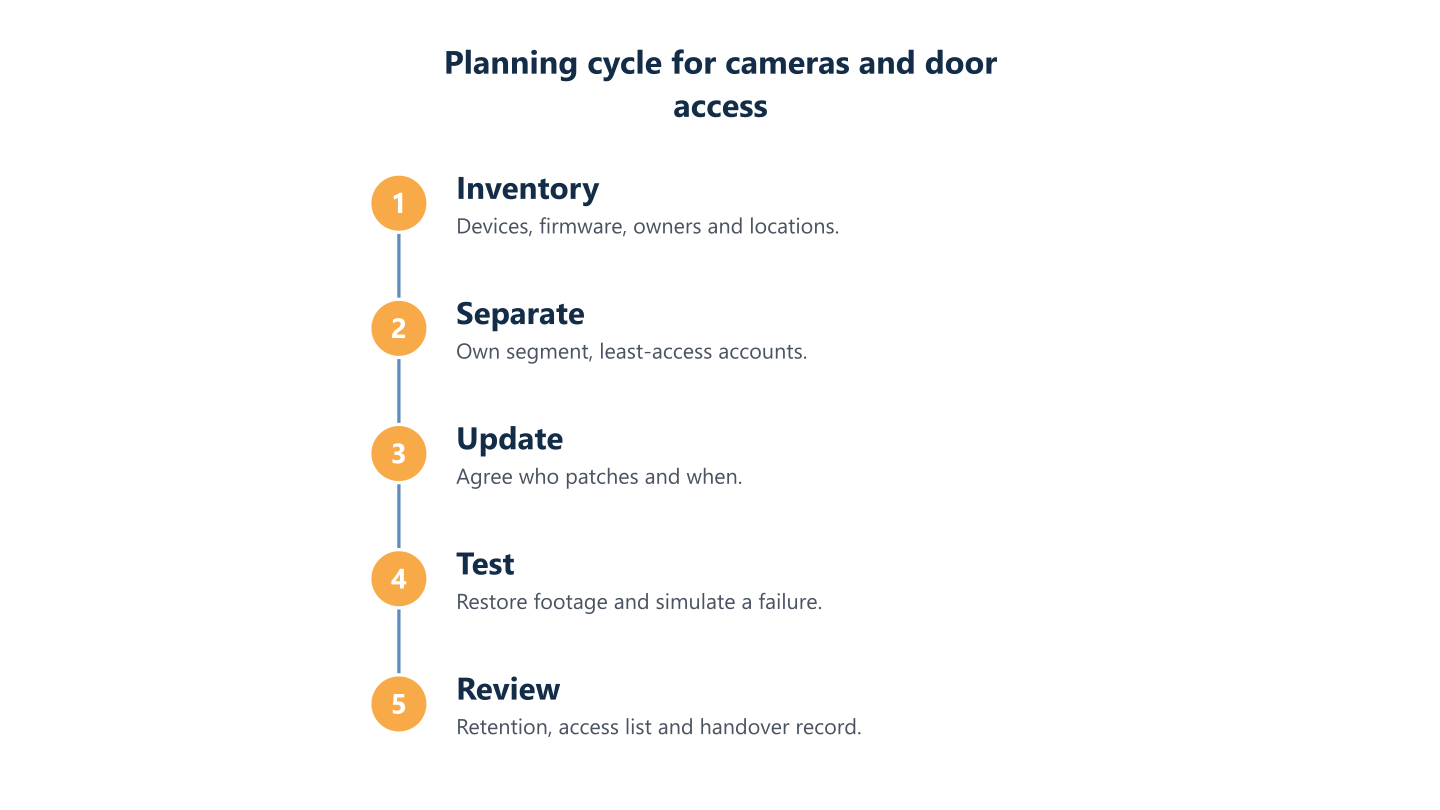
Read the steps as text
Inventory, separate, update, test, review
Retention, privacy and handover: documents to have in place
Footage that shows an identifiable person can be personal data, so how long you keep it needs a stated reason. Retention is a balance: long enough for the purpose you have written down, and no longer than necessary under data protection rules. This is general information, not legal advice, and the requirements differ by country. BlueNova IT’s physical security work includes documenting current arrangements for recordings and access logs, but we do not provide legal advice, and who may view recordings is a legal and privacy question to review with your advisers. We support clients in English and Spanish and can work alongside your own IT team or installer in a co-managed way, with scope agreed per organisation. The sections below cover the retention period, viewing rights and the handover documents to ask for.
Retention and data protection: set a period and a reason
Footage and access logs can be personal data. Decide the purpose, who may view, how long recordings are kept and how they are deleted, and write it down. A longer period needs a stronger reason, and 'just in case' is rarely one. Check that the recorder is set to overwrite or delete on schedule, and that any backup copy follows the same rule. The rules differ by country, so check your national law and your data protection authority, and take legal advice where needed; this guide is not legal advice.
Who may view footage and how access is recorded
Limit viewing to the people whose role needs it, and use the system’s audit log so you can see who viewed or exported footage and when. Think about signage, areas where people expect privacy, and what you will tell staff and visitors. Door access logs deserve the same care, since they show who entered where and when. The requirements depend on national law, so check with the relevant authority, and review the arrangements whenever cameras are moved or added.
Handover documents and questions to ask a supplier
Ask for a handover record when the work is finished: device list, network diagram, VLAN and address plan, account list and owners, retention settings, backup and restore steps, and who to call for each part. Keep it where your IT team can reach it, not only in the installer’s files. Useful supplier questions include who updates the firmware, which ports and services must stay open, how remote viewing works, what happens when power or the internet fails, and what happens to your footage if you end the contract. Our business network planning guide lists wider supplier questions.
A sound plan starts with purpose, areas and an inventory. Power, bandwidth, separation, accounts, updates, backup, failure planning and retention each need an owner and a record, or they drift. Data protection rules depend on your country, and this guide is general information, not legal advice. Our support is in English and Spanish, Monday to Friday 09:00-18:00 CET.