
A business Wi-Fi site survey checklist covers coverage zones on a floor plan, how many people and devices connect, interference, access point positions with their cabling and power, network separation, sign-in security and roaming, plus a check after installation. Settle these before buying equipment, because they decide how many access points you need and where they go.
Offices that buy access points first can find the gaps later: a dead corner in a meeting room, guests sharing a network with payment terminals, a cable run nobody planned. This guide is for the person briefing a supplier and judging the result. It stays on Wi-Fi; for providers and components, see our network planning guide.
Questions about this guide? Talk it through with us
Define what the Wi-Fi must do: zones, people and devices
Write the requirements in business terms before anyone discusses equipment. You can prepare this list on your own:- the zones on the floor plan where Wi-Fi must work well;
- headcount, devices per person and the busiest moments;
- the applications that matter most;
- who connects: staff, guests, contractors, equipment.
| Criteria | Predictive survey | On-site survey | Post-install validation |
|---|---|---|---|
| When | Before purchase, from plans | Before the design is final | After installation |
| You get | Modelled coverage | Measured signal and noise | Results against the design |
| Limit | Cannot see what the plan omits | Reflects the day measured | Cannot predict later changes |
Floor plan and coverage zones
Mark on a floor plan where Wi-Fi must work well: desks, meeting rooms, reception and storage areas where scanners or tablets are used. Then mark where it only needs to work, such as corridors, stairwells and outdoor areas. Priority zones drive how many access points you need; the rest can tolerate a weaker signal. Use a current plan and note what has changed since it was drawn, such as moved partitions or a storeroom turned into a desk area. A supplier cannot see any of this unless you tell them.People, devices and busy moments
Count people first, then devices per person: laptops, phones, tablets, printers, handheld scanners, screens and other connected equipment. Visitors and personal devices add to the load, so include them. Then note the busy moments, such as a Monday meeting, a training day or a sales event, when many people connect in the same room at once. Capacity is shaped by how many devices share each access point at those moments, not by the average day. Write the numbers down as ranges you can defend, and flag anything expected to grow.What people do on the network
List the demanding uses: video calls, large file transfers, cloud applications, voice, payment or stock terminals. These shape capacity more than headcount alone, because one person on a video call asks more of the network than several people reading email. Also record which uses are sensitive to delay, since calls and payment terminals need steady performance rather than peak speed. Ask your supplier how the design accounts for each use, and check current standards and your device support, because older devices can slow shared airtime for everyone.Survey the building and its radio environment
A floor plan shows walls, not what they are made of or what sits between them. A wireless survey checklist for the building typically runs in this order:- Walk the site with the plan and note materials, obstructions and changes.
- Check for neighbouring networks and other sources of interference.
- Choose the survey moments you need: predictive, on-site or both.
- Record measurements with their locations, so results can be compared later.
- Repeat key measurements after installation, in the priority zones.
Walking the site: materials and obstructions
Walk the site with the floor plan in hand. Look for thick or metal-lined walls, lifts, glass, storage racks, and open and closed ceilings. Note partitions and cabinets that are not drawn on the plan, because they can weaken a signal as much as a wall does. Pay attention to areas where the layout changes often, such as warehouses or open-plan floors with movable furniture. Photograph anything unusual and mark it on the plan; a few images save a supplier from guessing, and they help later if coverage in that area needs another look.Interference from neighbours and other equipment
Interference can come from neighbouring offices, other access points and non-Wi-Fi equipment such as cordless devices or machinery. Ask for it to be checked at the times your office is busiest, because a quiet weekend visit can hide problems that appear on a Tuesday morning. Ask also how the findings will be written up, so you can see which sources were found and where. Interference changes as neighbours add equipment, so treat the result as a snapshot, not a permanent fact about the building.Predictive, on-site and validation surveys compared
A predictive survey models the building, an on-site survey measures it, and a validation survey after installation compares the result with the design. Each answers a different question: how many access points to expect, where they should really go, and whether the finished network does what you asked. A predictive Wi-Fi site survey is quick and useful for early planning conversations, while a validation survey is the one you can hold the result against. Which combination fits depends on the size and complexity of your site.Plan access points, cabling, power and management
The best location on paper still needs a cable run and a switch port. Check these points before the design is final, and ask for the answers in writing:- mounting options for each position: ceiling type, height and access;
- the cable route back to the network cabinet, and its condition;
- free switch ports, port speeds and power over Ethernet capacity;
- the management model, and who owns its account.
Where access points go and why
Place access points where the survey says, not where a socket happens to exist. A device mounted in a corridor cupboard is convenient to install and often poor for the rooms it should serve. Check ceilings, mounting points and how far the cable run to the network cabinet is, because long or awkward runs may push a position elsewhere. Ask the supplier to mark each position on the plan with a reason, so later changes can be judged against the original thinking. Enough, but not excessive, overlap matters for roaming and resilience; too much can cause co-channel interference.Cabling, switch ports and PoE
Check the switch ports, port speeds and power over Ethernet (PoE) capacity available, and whether the cabling in the walls is fit for the access points you plan. An access point can only perform as well as the cable and port behind it, and a switch with spare ports may still lack the power budget to feed them. Poor or undocumented cabling can make a good design underperform. Ask for a short list of what is in place, what is reusable and what is missing, and keep it with your records.Controller, cloud-managed or standalone
Decide how access points will be managed. A local controller, a cloud-managed service or standalone units each change ownership, licensing and what happens if the internet link fails. Standalone units are simple for very small sites but are managed one by one. Cloud-managed setups ease oversight across several sites but may depend on an ongoing subscription. A local controller keeps management on your premises but needs looking after. Whichever you choose, make sure the organisation, not the installer, holds the administrator account.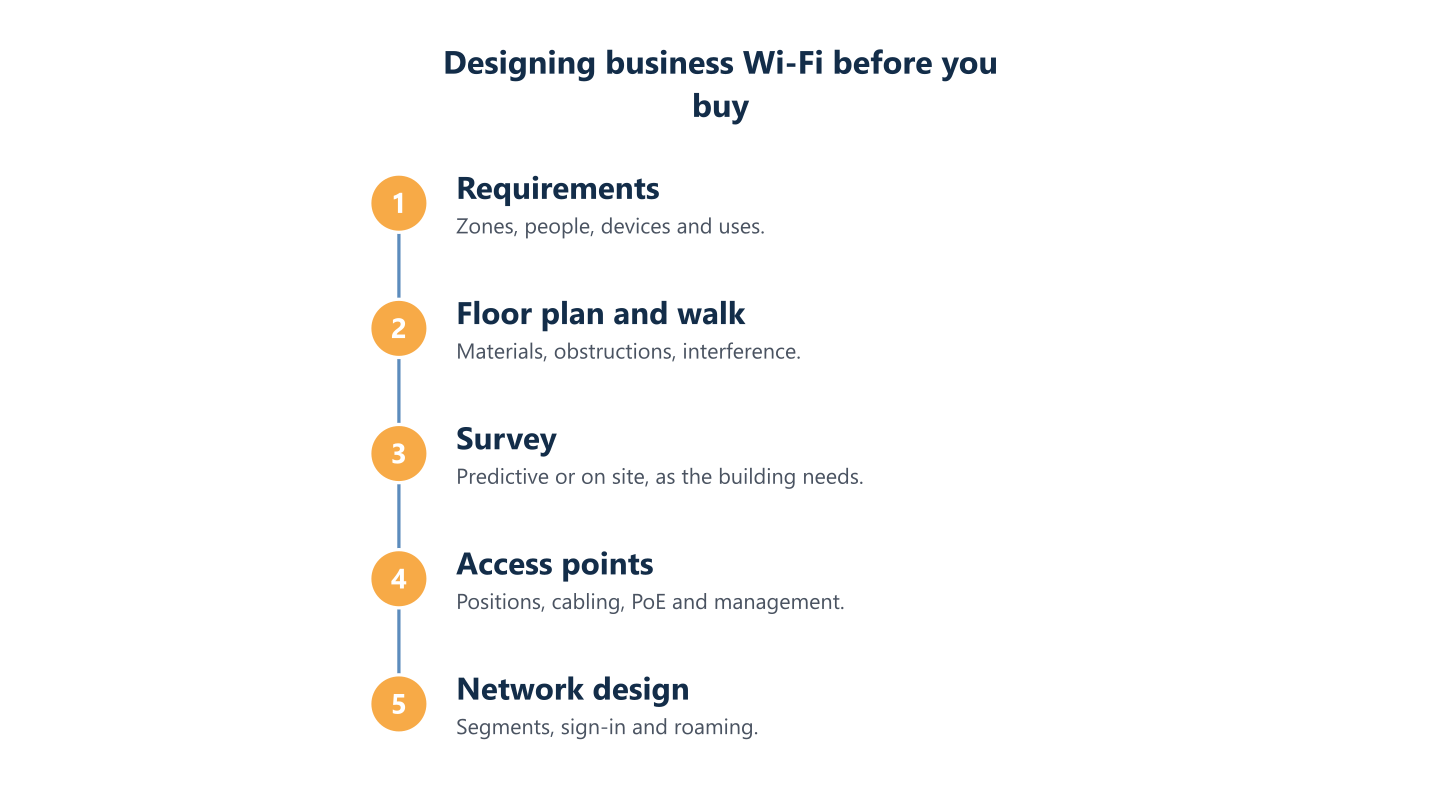
Read the steps as text
Requirements, floor plan, survey, access point positions and network design
Design the network behind the Wi-Fi: segments, sign-in and roaming
Common Wi-Fi complaints are not only about signal bars. They are about guests reaching an internal printer, a camera sharing a network with finance laptops, or a video call that stutters when someone walks to another room. Those outcomes come from design choices, so put them in the brief before any equipment is ordered rather than leaving them for a tidy-up later. Three choices matter most: how traffic is separated, how people and devices sign in, and how devices move between access points.Write the separation, sign-in and roaming decisions into the brief, then judge the finished network against them.BlueNova IT’s networks and infrastructure service reviews how staff, guests and devices connect and are separated, and it can sit alongside wider work on cybersecurity. Treat the choices below as general guidance for your own business Wi-Fi planning.
Staff, guest and smart-device networks
Give staff, guests and smart devices such as printers, cameras, sensors and displays their own networks. In practice this usually means separate SSIDs mapped to VLANs, with written rules on what each may reach. Guest Wi-Fi and staff Wi-Fi separation is the baseline: visitors get internet access and nothing else, while staff reach shared files and internal systems. Smart devices often cannot run modern security features, so keeping them apart limits what one weak device can touch. For cameras and recorders, see our CCTV network requirements guide. Ask for a simple table listing each network, who uses it, what it may reach and who approves changes. If you cannot read it in a minute, it is probably too complicated.Authentication: passphrase, 802.1X and WPA3 where supported
Choose the sign-in method for each network separately. A shared passphrase is simple and suits a guest network or a handful of devices, but everyone knows it, and changing it means updating every device. Individual sign-in with 802.1X ties access to a person or device, so removing a leaver does not disturb anyone else, though it needs an authentication service behind it. Use the newer security modes, such as WPA3, where your equipment and devices support them, and ask what happens to older devices that do not. Decide who will manage accounts after handover, because sign-in is only as good as the process that keeps it up to date.Roaming, calls and moving devices
Roaming is what a user notices when a call drops while walking from a desk to a meeting room. It depends on enough overlap between neighbouring access points, consistent settings across the site and client devices that handle moves well. Some older or low-end devices cling to a distant access point instead of switching, so test the devices your staff really use, not only a spare laptop. Ask how roaming will be checked: walk a video call through the zones you marked as priority and see whether it holds. Voice and video are the early warning, because they expose gaps that file downloads hide.Validate after installation and hand over
A finished installation is not the same as a finished project. Once the equipment is up, the useful questions are whether the network behaves as the design said it would, and whether your organisation can run it without the installer. BlueNova IT’s networks and infrastructure service covers change planning with checks before sign-off and documentation you keep. A Wi-Fi validation survey is the formal version of that check, and the sections below show what to look at, what to keep and when to reopen the design. Before you accept the work, put these questions to your supplier:- Which zones and busy moments were re-checked, and where are the results?
- Which findings remain open, and who will fix them?
- Which documents do we receive, and who holds the administrator accounts?
- Who do we contact when something changes or breaks?
The validation check after installation
Re-check coverage, speed and roaming at the busy moments and in the zones you marked as priority, then set the results against the design. A quiet afternoon proves little, so test when meeting rooms are full and video calls are running. Walk the site with a laptop and a phone, note weak spots, and repeat the walk with a call in progress. Any gap against your written requirements is a finding to fix before sign-off, not a note for later. The supplier should record what was changed and test the same spot again, and you should keep the before and after results together.Documentation you should own
Ask for the documents you will need when something changes or breaks: the floor plan with access point positions, the survey results, the list of networks and VLANs, the credentials and who holds them, and the cabling and switch port map. Make sure the organisation, not the installer, owns the administrator accounts and licence details, and that nothing important lives only in one person’s head. Store the set where your team can reach it, and update it whenever the network changes. A future supplier or colleague can then pick up the work without starting from a blank page, which is the practical value of a good handover.When the design needs a second look
Revisit the design when layout, headcount, devices or uses change. A new meeting room, a warehouse rack that blocks a corridor or a batch of smart devices can each shift the picture, and so can a move to more video calls. A survey describes the building on the day it was measured; it does not promise future performance. Set a simple trigger: whenever you plan a layout change, a large hardware purchase or a new use, ask whether the Wi-Fi design still holds. The IT roadmap guide shows how to fit such reviews into wider planning.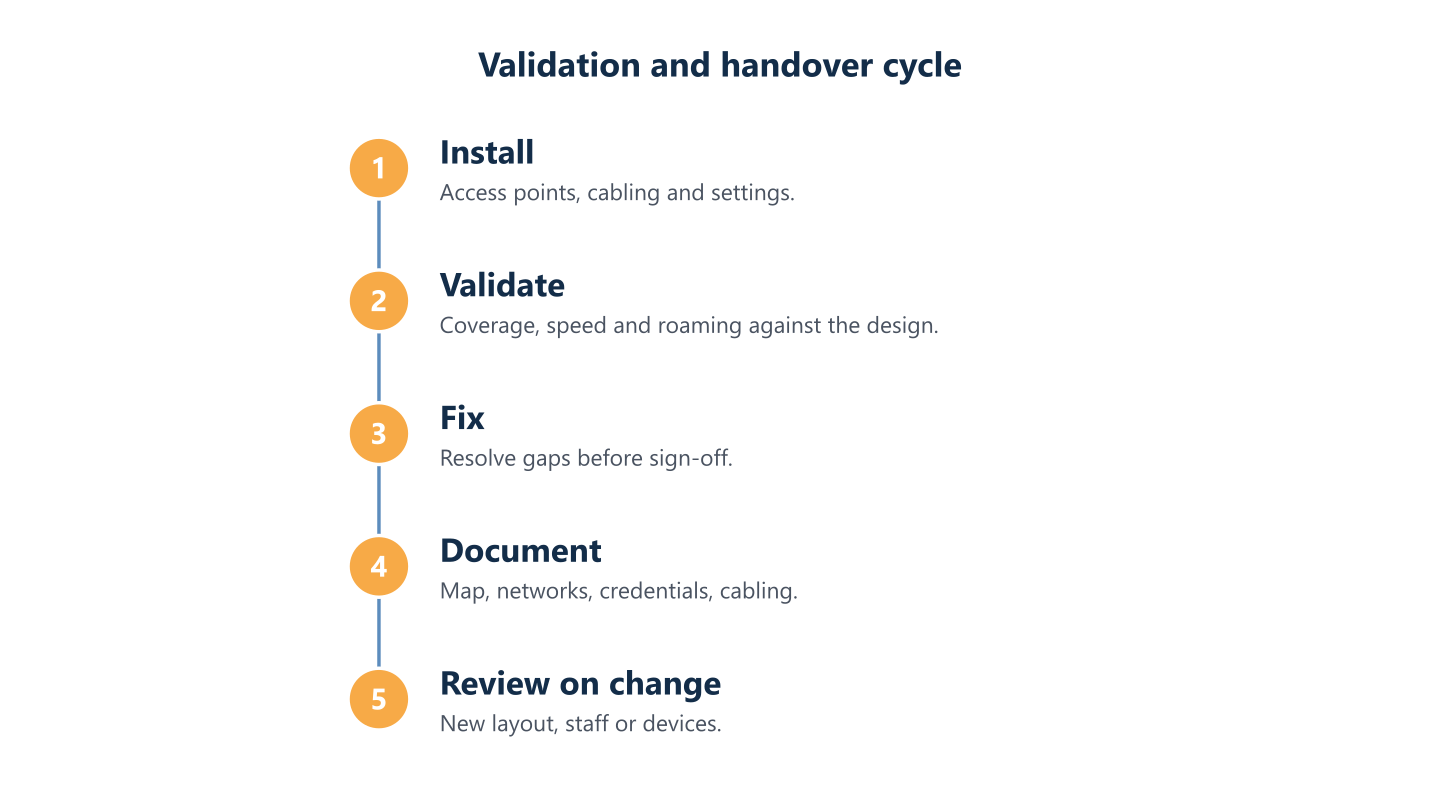
Read the steps as text
Install, validate, fix, document and review when things change
Frequently asked questions
What is a business Wi-Fi site survey?
A site survey is a structured look at a building to decide where Wi-Fi access points should go and what could get in the way. It can be modelled from a floor plan, measured on site, or repeated after installation to check the result. Which type you need depends on the building and how the network will be used.
Do we need a site survey for a small office?
Not always at full depth. A small, open office may need little more than a floor plan, a device count and a walk-through, while an office with thick walls, several floors, or heavy video and voice use benefits from measured results. In most cases, a check after installation is worth doing whatever the size.
How many access points does an office need?
It depends on the layout, building materials, the number of people and devices, and what they do on the network. A count from a rule of thumb can be wrong in either direction, which is why zones, device numbers and a survey come before the purchase.
Should guests and smart devices use the same Wi-Fi as staff?
In most cases they should not. Separate networks for staff, guests and smart devices such as printers, cameras or displays let you limit what each group can reach. This is typically done with separate SSIDs mapped to VLANs, and it is easier to design at the start than to add later.
What should we check after the Wi-Fi is installed?
Check coverage, speed and roaming in the zones you defined, at the busy times of the day, and compare the results with the design. Also make sure you receive the access point map, the list of networks and VLANs, and a record of who holds the administrator credentials.