
To protect a business email domain, configure three authentication mechanisms using DNS: SPF lists the servers allowed to send for your domain, DKIM adds a signature that receivers can verify, and DMARC states what you want receivers to do when neither SPF nor DKIM produces a pass aligned with the visible From domain, and where to send reports. Set them up in that order, start DMARC in monitoring mode, read the reports, and only then tighten the policy.
Without them, receiving servers have less to go on when someone sends a message that claims to come from your domain. This guide is general and written for businesses with little or no in-house IT. The SPF, DKIM and parked-domain records come from the official documentation of Microsoft and Google, linked so you can check the current values for your own setup; the starter DMARC record is an illustration built from the same syntax.
Questions about this guide? Talk it through with us
What do SPF, DKIM and DMARC each do?
Each record answers a different question when a message arrives at another company’s mail server.
| Record | Question it answers | Where it lives in DNS | What you publish |
|---|---|---|---|
| SPF | Is this server allowed to send mail for the domain in the message’s envelope (return) address? | A TXT record on the domain | A list of permitted senders and a rule for everyone else |
| DKIM | Was this message signed by the domain, and is it unchanged? | Records published under a selector name such as selector1._domainkey | The public key your mail service gives you |
| DMARC | Does SPF or DKIM pass for the domain the reader sees in From, and what should happen if not? | A TXT record named _dmarc | A policy (none, quarantine or reject) and a reports address |
The formal definitions are in RFC 7208 for SPF, RFC 6376 for DKIM and RFC 9989 for DMARC. As Microsoft explains, a message passes DMARC if the SPF or the DKIM check passes and the authenticated domain aligns with the visible From domain. Relaxed alignment normally accepts the same organisational domain; strict alignment requires the domains to be identical. Authentication can pass without that alignment, which is why a third-party sender can still fail DMARC.
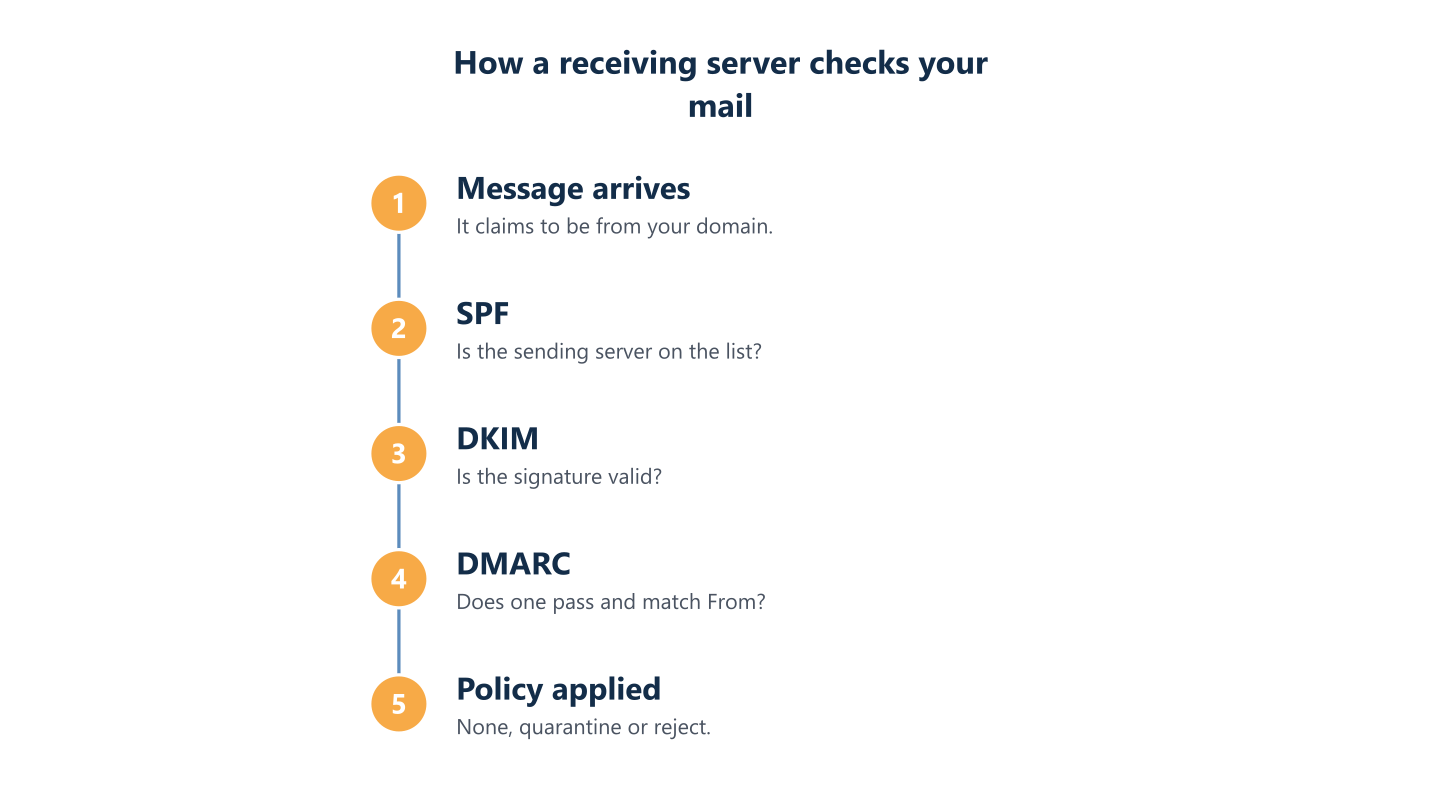
Read the steps as text
DKIM and DMARC before applying a policy
Do these rules apply to a small business?
Yes, in two ways. First, Microsoft describes these records as a way to help prevent spoofed senders, which are used in business email compromise and phishing, and that risk does not depend on company size. Second, some receivers ask for them. Google’s email sender guidelines say that anyone sending to Gmail accounts must set up SPF or DKIM, and that senders of more than 5,000 messages a day to Gmail accounts must set up SPF, DKIM and DMARC, align the From domain with the SPF or DKIM domain, and support one-click unsubscribe for marketing messages. Below that volume the bulk-sender rules do not apply directly, but a newsletter tool can change the picture, so set up all three. Check the current rules, as they change.
What do you need to know before you touch DNS?
Most email authentication problems come from an incomplete list of senders, not from syntax. Build this list before changing a record.
- Every domain and subdomain that sends mail, and every domain you own but never use for mail.
- Every service that sends mail as your domain: your main mail platform, website forms, newsletter, invoicing or CRM tools, a help desk, scanners and printers, and any on-site mail server.
- Who controls DNS. For Microsoft 365, SPF and DMARC records for your own domain are created at your registrar or DNS host, because there is no admin portal for them. Keep that login in your company’s name.
- A mailbox or shared group for DMARC reports, not an individual’s inbox.
Add the registrar and DNS logins to your IT documentation and to your leaver routine, such as the one in our IT onboarding and offboarding checklist, so they do not leave with one person.
How do you set up SPF?
SPF is a single TXT record on each domain or subdomain that sends mail. The basic shape is v=spf1, then the permitted sources, then a rule for everything else.
The record for Microsoft 365 and for Google Workspace
Microsoft’s SPF guide gives this record for a domain whose only mail source is Microsoft 365: v=spf1 include:spf.protection.outlook.com -all. Google’s SPF page gives this one for a domain that sends only through Google Workspace: v=spf1 include:_spf.google.com ~all. Some government and regional clouds use different values, listed on Microsoft’s page. If you also send from an on-premises mail server, add its public IP address with ip4: or ip6:. If another service tells you to add an include, add it to the same record rather than creating a second one, but for services you do not control, Microsoft recommends a subdomain instead (see the DKIM section below).
The three rules that break SPF
- One record per domain or subdomain. Microsoft states that multiple SPF records on the same name cause a permanent error, and RFC 7208 says the same. Merge senders into a single record.
- No more than 10 DNS lookups. Each include, a, mx, exists and redirect counts (RFC 7208 also counts ptr), and nested includes add more. ip4: and ip6: addresses do not count. Beyond the limit, SPF fails with a permanent error. A subdomain gives a bulk or third-party service its own budget.
- Careful syntax. Check the record as TXT data, with the correct v=spf1 version, supported mechanisms and separators. Do not confuse the DNS host-name field with the TXT value, and do not insert spaces inside an include mechanism. Validate the final record and its expanded lookup count before relying on it.
Subdomains need their own SPF record: the one on example.com does not cover marketing.example.com. For domains you own but never use for mail, Microsoft recommends v=spf1 -all.
-all or ~all: what the two vendors say
The qualifier changes the SPF result for an unlisted source: -all requests fail and ~all requests softfail. Neither result is an SPF pass for DMARC. A valid, aligned DKIM signature can still make DMARC pass. Choose the SPF ending using your provider’s current guidance and a complete sender inventory; it does not switch DMARC off or replace a DMARC rollout.
How do you set up DKIM?
DKIM needs a key pair: your mail service holds the private key and signs outgoing messages, and you publish the public key in DNS. The exact record names and values are generated for you, so always take them from your own admin console.
Microsoft 365: two CNAME records and a switch
For each custom domain, Microsoft uses two CNAME records, at selector1._domainkey and selector2._domainkey, that point to keys it holds. The values are specific to your domain, and Microsoft notes that its examples are for illustration only. New custom domains use a format introduced in May 2025, so copy the values from the Defender portal or from the Get-DkimSigningConfig command in Exchange Online PowerShell. Publish both CNAMEs at your DNS host, wait for Microsoft to detect them, then turn on signing for the domain. Microsoft says a custom domain needs this step, and that each subdomain you send from needs its own DKIM configuration. See Microsoft’s DKIM setup guide.
Google Workspace: generate a record, publish it, start authentication
In the Google Admin console, open the Gmail DKIM authentication settings, choose the domain and generate its record. Use the linked current Google instructions for the exact navigation in your console. The default selector is google, so the TXT record name looks like google._domainkey. Google offers a 2048-bit key if your DNS host supports it and a 1024-bit key if not. Click Start authentication only after the record is published; Google says DKIM can take up to 48 hours to start working. See Google’s DKIM setup page.
Other services that send as your domain
A newsletter, invoicing or help desk tool signs with its own domain unless you set it up to sign with yours. Microsoft’s troubleshooting table describes this case: SPF passes for the service’s domain, but DMARC fails because neither SPF nor DKIM aligns with your From domain. The fix is to configure DKIM signing with your domain at the service, or to change its envelope sender (the technical return address, also called MAIL FROM) to your domain or a subdomain. For services you do not control, Microsoft recommends a subdomain such as marketing.example.com, so that problems there do not affect the reputation of your main domain.
How do you set up DMARC without blocking your own mail?
Google asks that SPF or DKIM be in place before DMARC and suggests allowing 48 hours after setting them up. The DMARC record is a TXT record at the host name _dmarc. A safe first record is v=DMARC1; p=none plus a rua tag that names a mailbox you control. Google recommends always including rua, and its value is the mailbox address written with the mailto prefix.
- Publish p=none and leave it long enough to receive reports from all your regular senders, including busy periods.
- Read the aggregate reports: usually daily XML files, often compressed, listing the servers that send as your domain and whether they pass. An external DMARC reporting service can make the data readable.
- Fix every genuine sender that fails: add your own servers to SPF, and for third-party services set up DKIM with your domain or align their envelope sender, because adding an include to SPF alone does not align a sender that uses its own domain.
- Move to p=quarantine, watch the results, then move to p=reject once genuine mail passes. Microsoft recommends doing this gradually, starting with a domain or subdomain of low volume.
If no record is found for the sending subdomain, DMARC policy discovery may find a parent policy; subdomain policy settings can affect the result. Check the effective policy for every sending subdomain. For parked domains, Microsoft recommends v=DMARC1; p=reject; and says not to publish DKIM records for them.
One detail has changed. Microsoft’s rollout page, Google’s DMARC page and many guides use a pct tag to apply the policy to only a percentage of mail. RFC 9989, published in May 2026, obsoletes RFC 7489 and removes pct, because it was usually not applied accurately unless set to 0 or 100; it adds a t tag (testing yes or no) for those two cases, and says unknown tags must be ignored. A pct value may therefore have no effect with receivers that follow the new standard, so plan the rollout in clear steps and read the reports before each one. The policy options are on Google’s DMARC page and in Microsoft’s DMARC guide.
A p=none policy asks receivers not to apply a DMARC-specific enforcement action. It does not guarantee delivery: spam, malware, reputation and other receiver checks still apply. Reports may contain domain and infrastructure information, so choose the receiving mailbox or reporting service deliberately and restrict access.
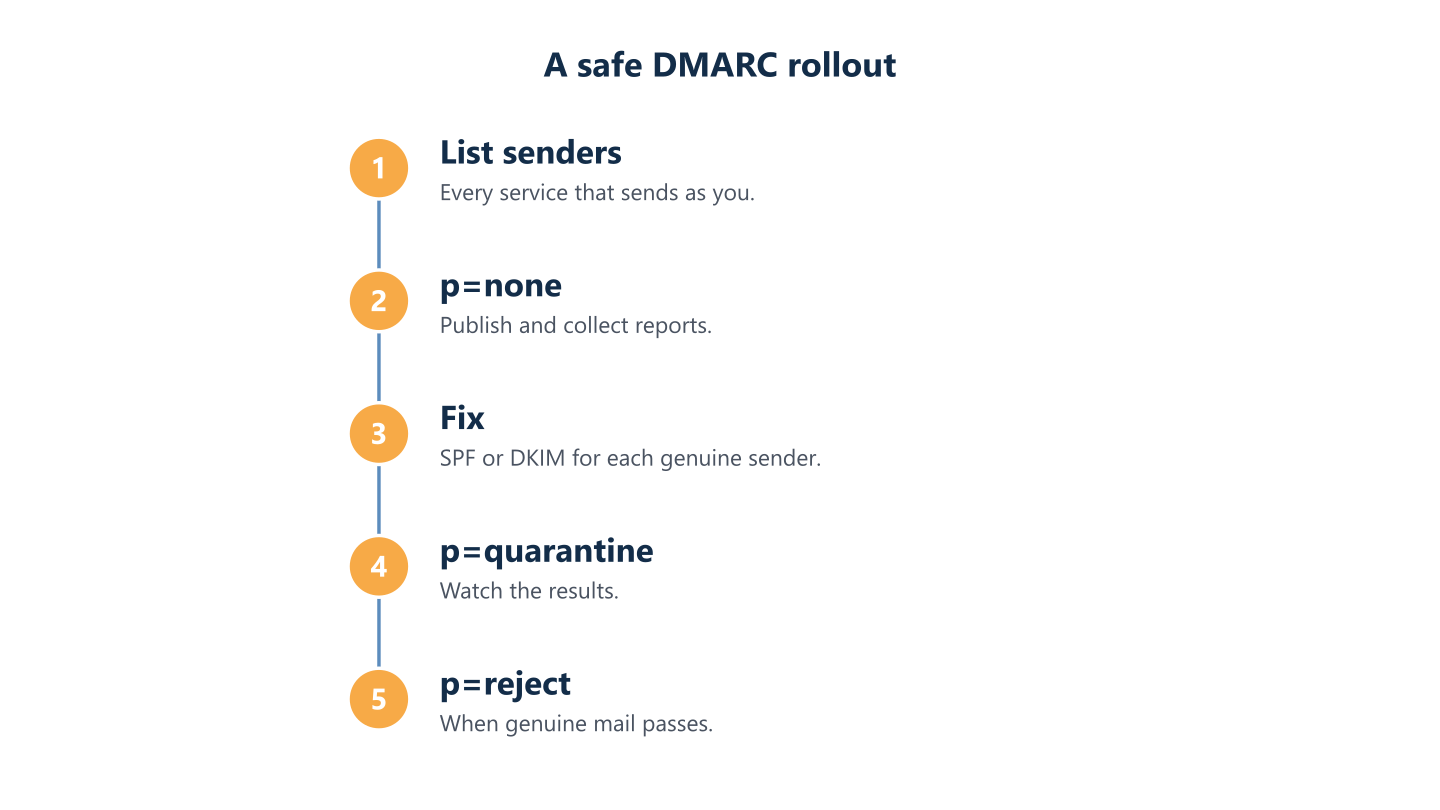
Read the steps as text
Fixes, quarantine and reject
How do you check that it works?
Send a test message from each sender to a mailbox at another provider, such as a Gmail address, open the full message headers and look at Authentication-Results. You want spf=pass, dkim=pass and dmarc=pass; Google’s DKIM page also says to look for DKIM=pass in the original message. Common causes of dmarc=fail are a third-party sender whose SPF or DKIM does not align with your From domain (each can pass without aligning) and forwarded mail. Microsoft notes that forwarding changes the envelope sender, which breaks SPF alignment, while DKIM can survive forwarding if the signed headers and body remain valid; modifications can invalidate it. Repeat the check after any change, such as a new tool or a move between platforms; our Google Workspace to Microsoft 365 migration guide covers the mail routing side.
Who keeps it working afterwards?
The records are not a one-off task. Name an owner for the DNS login and for the reports, set a review date, and ask one question whenever you buy a new tool: will it send mail as our domain, and how will it pass SPF or DKIM? Remove senders from SPF when you stop using a service, because old includes use up your lookup budget. The Email protection section of our Microsoft 365 security baseline checklist covers the same ground in short form. Our cybersecurity review looks at email, including sender protection, and the scope is agreed per organisation. We support clients in English and Spanish, Monday to Friday 09:00-18:00 CET.
Good email authentication is a short list: know every sender, publish one SPF record, sign with DKIM for your own domain, start DMARC at p=none with reports, and tighten in steps. Take every value from your provider’s current documentation, because records and recommendations change.